

Adobe Acrobat Reader stands as a staple tool for professionals handling digital documents. Yet, grasping the full essence of Adobe Reader might not be straightforward for everyone. What are its standout capabilities, and how can one effectively utilize them? If you’re intrigued by this subject, join us in exploring the insights provided by buyaitools. Today, we’ll delve into essential details about Adobe Acrobat Reader.
Exploring the Essence of Adobe Acrobat Reader Software
This application serves as a widely adopted platform for viewing PDF files. It equips users with core functionalities such as editing, commenting, and annotating directly within PDF documents. Additionally, it facilitates seamless conversion of PDFs to formats like Word or Excel. As a result, it’s an invaluable asset for educational pursuits, professional tasks, and more, catering perfectly to students, office workers, educators, and beyond.
Now, what exactly is Adobe Acrobat Reader DC? This represents an enhanced iteration of the standard Adobe Reader, boasting advanced features. Highlights include document scanning from paper, digital signature insertion, and robust encryption options.

Discovering the Superior Capabilities of Adobe Acrobat Reader
Beyond comprehending the core concept of Adobe Acrobat Reader, it’s crucial to explore its array of features in depth. With this software, users gain access to a suite of advanced tools designed to enhance productivity and document management. Let’s examine these remarkable attributes more closely.
Generating PDF Files
One of the primary strengths of Adobe Reader lies in its efficient PDF creation process. Users can swiftly generate PDFs from various sources, including Word documents, PowerPoint presentations, Excel spreadsheets, HTML pages, and image files such as PNG, JPG, TIFF, or BMP. This versatility ensures that converting content into a universal, shareable format is both quick and hassle-free, making it ideal for preserving document integrity across different platforms.
To elaborate, imagine you’re working on a complex report in Microsoft Word. With Adobe Acrobat Reader, a few clicks allow you to transform it into a PDF, maintaining layouts, fonts, and images without distortion. This feature is particularly beneficial for professionals who need to distribute materials that look consistent on any device, reducing compatibility issues that often plague other formats.
Effortless PDF Editing
Typically, documents may contain inconsistencies like mismatched fonts or sizing errors. Adobe Reader addresses this by offering intuitive editing tools that let you correct text issues or insert new sections seamlessly. Moreover, it extends to visual elements, enabling adjustments to image sizes or replacements with fresh visuals.
The editing suite empowers users to refine PDFs to their exact specifications, fostering creativity and precision. For instance, if a business proposal requires last-minute tweaks to align with branding guidelines, this functionality ensures you can make those changes directly, without needing to revert to the original source file. This not only saves time but also streamlines workflows in fast-paced environments.
Document Scanning Feature
What does scanning entail in the context of Adobe Reader? This capability allows for the digitization of physical documents, such as printed pages or books, into editable PDFs. Simply capture an image or use a scanner, and the system converts it into a searchable, digital format.
In practice, this is a game-changer for archiving old records or integrating paper-based information into digital systems. Professionals in legal or historical fields, for example, can preserve fragile documents digitally, ensuring longevity and easy access. The optical character recognition (OCR) technology embedded often makes the text searchable, adding layers of utility for research and data extraction.
Converting PDF Formats
Adobe Reader excels in transforming PDFs into alternative file types, including DOCX, PPTX, XLSX, and more. Crucially, this process preserves the original file’s quality, size, and content integrity.
This conversion is essential when collaborating with teams that prefer editable formats. Suppose you’ve received a PDF contract; converting it to Word allows for modifications without recreating the document from scratch. The software’s algorithms ensure that tables, images, and formatting remain intact, minimizing errors and enhancing efficiency in document-heavy professions.
Additional Functionalities
The software supports multiple languages, broadening its appeal globally. Beyond the core tools, it includes options for digital signatures, annotations, and bookmarks within PDFs, enriching the user experience.
These extras facilitate collaborative work, such as adding feedback to shared documents or marking key sections for quick reference. In educational settings, teachers can annotate study materials, while in corporate scenarios, teams can sign off on approvals digitally, reducing paperwork and accelerating processes.
Advantages of Adobe Acrobat Reader Software
Adobe Reader boasts numerous compelling benefits that contribute to its popularity among users. Let’s review these key strengths to provide a comprehensive understanding.
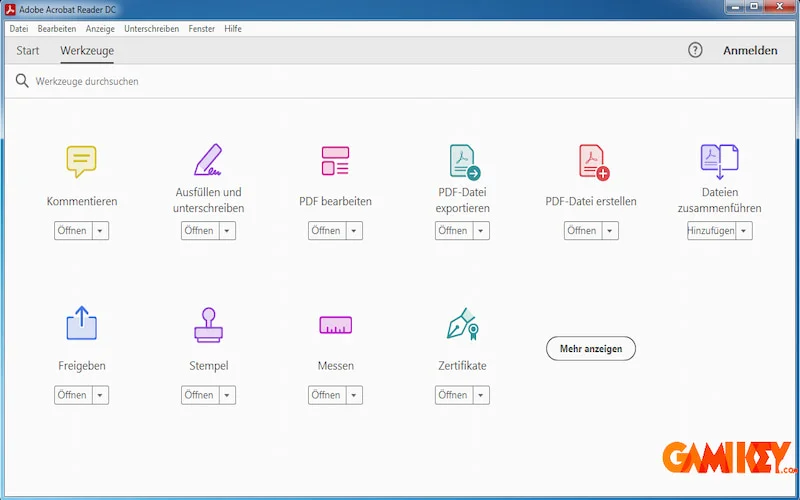
- The interface is crafted for simplicity and user-friendliness, enabling effortless navigation. Each tool is distinctly placed in the menu bar, complete with dedicated functions, which minimizes search time and boosts efficiency.
- A dedicated Tools panel offers quick access to features like creation and editing, form handling, signatures, reviews, and approvals. Meanwhile, the drop-down menu simplifies opening new files or existing documents.
- The integrated Find tool allows for rapid keyword searches within PDF content, making information retrieval straightforward.
- Protected Mode enhances security by safeguarding your system and devices from potential threats embedded in PDFs.
- Compatibility extends to various mobile devices, supporting both Android and iOS operating systems for on-the-go access.
- Conversions maintain the original file’s quality and content, ensuring no loss during transformations.
These advantages position Adobe Reader as a preferred choice for many, enhancing daily document interactions.
To expand on the interface, its minimalist design reduces the learning curve, allowing even novices to perform complex tasks without frustration. For instance, the Tools panel acts as a central hub, categorizing functions logically—creation tools for building new PDFs, editing for modifications, and collaboration features for team inputs. This organization is particularly advantageous in high-volume settings like corporate offices, where time is of the essence.
Moreover, the Find functionality isn’t just basic; it supports advanced searches, including case sensitivity and whole-word matching, which is invaluable for legal reviews or academic research. Protected Mode operates in a sandbox environment, isolating PDFs from the rest of your system to prevent malware execution, adding a layer of defense that’s crucial in today’s cyber-threat landscape.
Mobile support means you can view, annotate, or sign documents from your smartphone or tablet, synchronizing changes across devices via cloud integration. This mobility is a boon for remote workers or field professionals who need to access files without a desktop. Finally, the fidelity in conversions ensures that intricate elements like embedded fonts or hyperlinks remain functional, preserving the document’s intended appearance and interactivity.
Drawbacks of Adobe Acrobat Reader Software
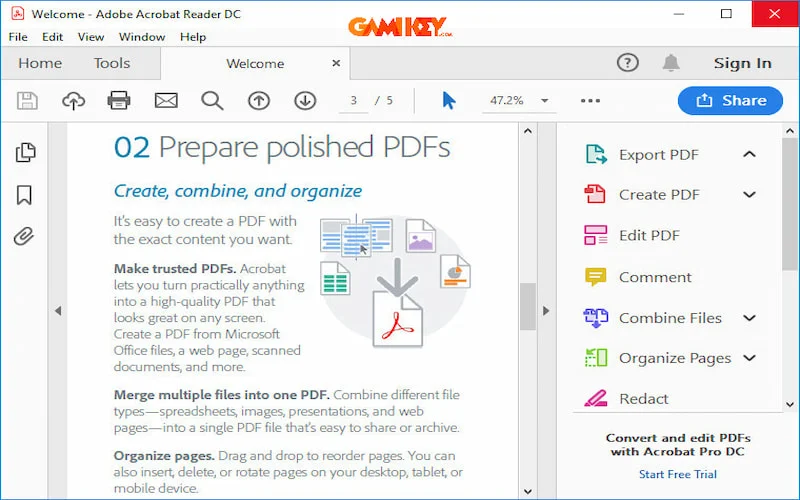
Elevated Pricing: Compared to competitors, Adobe Acrobat commands a premium price, especially for its Pro version, which might deter budget-conscious users or small businesses.
System Requirements: Optimal performance often necessitates robust hardware, particularly when dealing with extensive documents or high-resolution graphics, potentially excluding users with older machines.
Learning Curve for Beginners: The wealth of features and interface elements can overwhelm newcomers, requiring dedicated time to master the software’s full potential.
Large File Sizes: PDFs produced may end up bulkier than those from alternative tools, especially with embedded media, leading to storage and sharing challenges.
Limited Format Support: Certain file types may not convert flawlessly, resulting in occasional failures or loss of elements during transitions.
Compatibility Issues: Documents created here might not render perfectly in other PDF viewers, causing formatting discrepancies or functionality losses.
Delving deeper into pricing, the subscription model for advanced features can accumulate costs over time, making it less appealing for occasional users. For system demands, processing large files might cause lags on mid-range computers, necessitating upgrades that add to expenses. The complexity arises from the dense menu system; while powerful, it can confuse those accustomed to simpler apps, often leading to underutilization of features.
File size issues stem from Adobe’s emphasis on quality preservation, which includes high-fidelity compression that doesn’t always minimize footprint as aggressively as rivals. Format limitations are evident in niche file types, where conversions might strip metadata or interactive components. Lastly, compatibility hiccups highlight the importance of standardization; while Adobe sets the PDF standard, variations in implementation across readers can lead to unexpected behaviors, prompting users to test outputs thoroughly.
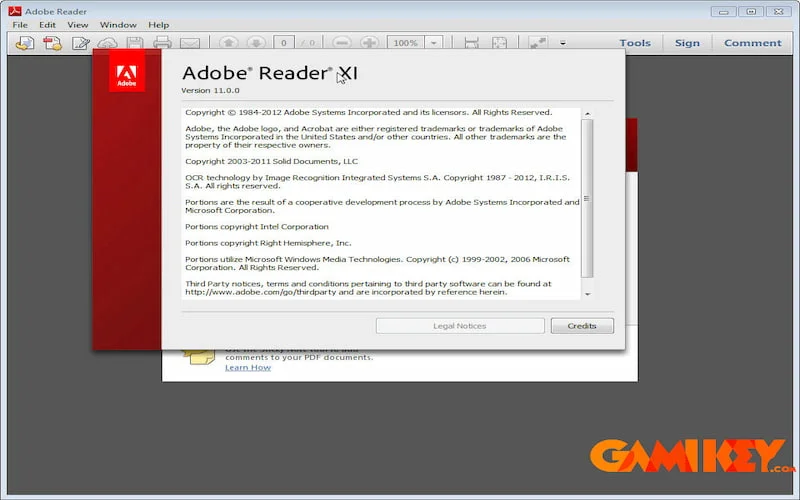
Key Differences Between Adobe Acrobat Reader DC and Adobe Reader XI
| Distinguishing Features | Adobe Acrobat Reader DC | Adobe Reader XI |
| Platform Support | Compatible with most operating systems and offers excellent cloud integration. | Limited cloud capabilities. |
| Feature Set | Includes numerous innovative tools. | Features a more basic array. |
| Updates | Receives continuous updates for the latest enhancements and experiences. | Operates as a standalone version without ongoing improvements. |
Expanding on these differences, Adobe Acrobat Reader DC’s broad OS support ensures seamless use across Windows, macOS, and mobile platforms, with cloud syncing allowing real-time collaboration. Its feature-rich environment introduces mobile scanning, enhanced commenting, and integration with Adobe’s ecosystem, far surpassing XI’s offerings. Regular updates not only patch security vulnerabilities but also introduce new functionalities, keeping DC at the forefront, whereas XI remains static, potentially exposing users to outdated risks.
Is Adobe Acrobat Reader Merely a PDF Viewer or Does It Offer More?
PDF Editing Capabilities
Adobe Acrobat Reader enables fundamental modifications, such as:
- Inserting Notes: Add text, drawings, or audio annotations to documents.
- Highlighting: Use digital pens or highlighters to emphasize critical sections.
- Annotations: Incorporate text or image-based comments.
To edit, simply open the file and navigate to the Comment tab, where tools await for annotations and marks.
This editing prowess transforms Adobe Reader from a passive viewer into an active collaboration tool. For example, in project reviews, team members can add sticky notes or highlight revisions, fostering interactive feedback loops. The audio note feature is unique, allowing voice memos for nuanced explanations that text alone can’t convey, which is particularly useful in multimedia presentations or remote team settings.
PDF Conversion Tools
The software supports exporting PDFs to formats like Word, Excel, or PowerPoint, facilitating sharing with non-PDF users.
Access this via the Tools tab, selecting Convert to and choosing the desired output.
Conversion accuracy is a highlight, with intelligent layout recognition that rebuilds tables and charts faithfully. This is invaluable for data analysts converting reports to Excel for manipulation or educators turning PDFs into editable slides. However, users should note that complex layouts might require minor post-conversion tweaks to perfect alignment.
PDF Security Measures
It includes safeguards to prevent unauthorized access, featuring:
- Password Protection: Secure files so only password holders can view them.
- Digital Signatures: Authenticate documents with verifiable e-signatures.
- Encryption: Encode content, accessible only with the correct key.
Configure these under the Protect tab after opening the file.
These security layers are essential for sensitive information, like contracts or medical records. Digital signatures comply with legal standards in many jurisdictions, providing non-repudiation. Encryption uses advanced algorithms, ensuring data privacy during transmission or storage, which is critical in industries like finance or healthcare where compliance is mandatory.
Furthermore, Adobe Reader offers extras like text search for quick content location, size adjustments for readability, and printing options for physical copies.
The search engine is robust, supporting wildcards and proximity searches, ideal for large documents. Size adjustments include zoom and reflow modes for better viewing on small screens, while printing features allow custom settings like booklet mode or watermarks, enhancing output versatility.
Should You Choose Adobe Acrobat Reader?
The decision hinges on your requirements. For basic viewing and annotation of PDFs, Adobe Acrobat Reader excels with its compatibility, intuitive design, and supportive tools. However, for advanced editing or broader format handling, alternatives like Foxit Reader or PDFelement might suit better.
Weighing pros and cons, if your workflow involves frequent PDF interactions without heavy editing needs, its free tier provides ample value. For power users, the premium versions unlock full potential, but consider trial periods to assess fit. Ultimately, its dominance in the PDF space stems from reliability and continuous innovation by Adobe.
To unlock the complete spectrum of features in Adobe Reader, acquiring a perpetual license is recommended. buyaitools offers authentic accounts at competitive prices to assist users. This tool is indispensable for those regularly engaging with documents, simplifying conversions and edits to save time and resources.
In summary, this article has illuminated Adobe Reader and its capabilities. For deeper insights into related accounts, check the “News” section on buyaitools.
Explore more articles on Adobe Acrobat Reader from buyaitools
How to Convert PDF to Word Using Adobe Reader
Comparing Foxit Reader and Adobe Reader
To further enrich your understanding, let’s dive into the historical evolution of Adobe Reader. Originally launched in 1993 as Acrobat Reader, it revolutionized document sharing by introducing the Portable Document Format (PDF), which ensured consistent viewing regardless of software or hardware. Over the years, Adobe has iterated on this foundation, incorporating user feedback to add features like accessibility tools for visually impaired users, such as screen reader compatibility and high-contrast modes.
In terms of integration, Adobe Acrobat Reader DC seamlessly connects with Adobe Creative Cloud and Document Cloud, allowing for workflows that span from design in Photoshop to final PDF distribution. This ecosystem approach benefits creative professionals who need to maintain a cohesive process from creation to archival.
Security has always been a cornerstone; recent versions include redaction tools to permanently remove sensitive information, preventing data leaks. For enterprises, admin controls allow IT teams to deploy customized installations, ensuring compliance with organizational policies.
Performance optimizations in newer releases handle large files more efficiently, with faster loading times and reduced memory usage. This is achieved through advanced rendering engines that leverage hardware acceleration, making it suitable for high-resolution displays and touch interfaces.
Community and support resources are abundant; Adobe’s forums, tutorials, and help centers provide guidance for troubleshooting and advanced usage. Third-party plugins extend functionality, such as integration with CRM systems for automated document handling.
When comparing to alternatives, Adobe Reader‘s market share reflects its reliability, but tools like Sumatra PDF offer lighter footprints for basic viewing, while Nitro Pro provides competitive editing at lower costs. Choosing depends on balancing needs with budget and feature requirements.
Future developments might include AI-driven enhancements, like automated summarization or smart annotations, further elevating its utility. As digital transformation accelerates, Adobe Reader remains a pivotal tool in managing the deluge of information in our connected world.
Exploring real-world applications, in academia, researchers use it to compile theses with embedded citations and interactive elements. In healthcare, it secures patient records with encryption, ensuring HIPAA compliance. Legal firms rely on its e-signature for binding agreements, expediting case resolutions.
For small businesses, the free version suffices for invoicing and proposals, while larger entities invest in Pro for batch processing and automation. User testimonials often praise its stability, with minimal crashes even under heavy loads.
Customization options, like theme changes and toolbar configurations, allow personalization to fit individual workflows. Accessibility features extend to keyboard shortcuts and voice commands, promoting inclusivity.
In conclusion, whether you’re a student digitizing notes or a executive signing deals, Adobe Reader adapts to diverse needs, proving its enduring value in the digital age.