

File Explorer, formerly known as Windows Explorer, stands as a cornerstone of the Microsoft Windows operating system. This powerful built-in tool empowers users to navigate, organize, and manipulate files and folders with remarkable efficiency. Whether you’re a novice exploring your PC for the first time or a seasoned professional streamlining workflows, mastering Windows Explorer unlocks unprecedented control over your digital environment. In this comprehensive guide, we delve deep into its essence, capabilities, structure, and practical usage to elevate your computing experience.
Understanding Windows Explorer: A Comprehensive Overview
The Windows Explorer, now officially rebranded as File Explorer in modern iterations of Windows, serves as the primary file management application integrated directly into Microsoft’s Windows operating system. It provides an intuitive interface for browsing the entire file system, including local drives, networked storage, and removable media. Users can perform essential operations such as copying, moving, deleting, renaming, and creating new files or directories seamlessly.
Beyond basic tasks, this tool facilitates advanced organization through sorting, grouping, and tagging mechanisms. Its user-friendly design ensures accessibility for all skill levels, while robust features cater to power users managing complex data structures. By centralizing file interactions, Windows Explorer plays a pivotal role in enhancing productivity and maintaining order in an increasingly digital world.
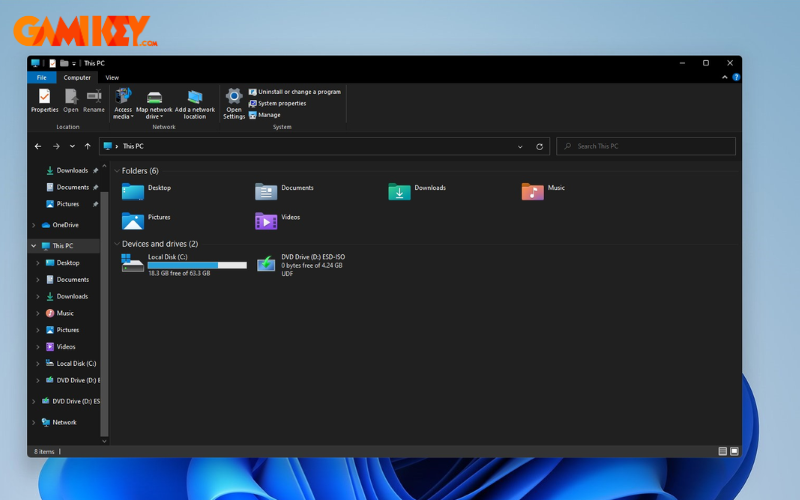
Historically introduced in Windows 95 as Windows Explorer, the tool has evolved significantly. In Windows 8 and later, Microsoft adopted the “File Explorer” nomenclature to reflect its expanded role, incorporating ribbon-based controls and modern UI elements. Despite the name change, many users and documentation still refer to it interchangeably as Windows Explorer, especially when discussing legacy contexts or command-line invocations.
This evolution underscores Microsoft’s commitment to refining user interaction paradigms, blending familiarity with innovation to handle the growing complexity of file types and storage options in contemporary computing.
Key Features That Define Windows Explorer
Windows Explorer distinguishes itself through a suite of sophisticated features designed to streamline file management and boost efficiency:
- Advanced Search Functionality: The integrated search bar supports sophisticated queries, including filters for file type, modification date, size, and metadata attributes, enabling rapid location of specific items even in vast directories.
- Preview Pane: Offers instant thumbnails and content previews for images, documents, videos, and audio files, allowing quick inspection without launching dedicated applications.
- Quick Access Section: Enables pinning of frequently used folders and recent files for one-click access, personalizing the home view to match individual workflows.
- Flexible View Modes: Multiple display options—including extra-large icons, list, details, tiles, and content—cater to diverse preferences, from visual browsing to data-rich tabular views.
- Drag-and-Drop Operations: Intuitive support for dragging files between folders or applications, with visual feedback for copy/move actions.
- Network and Cloud Integration: Seamless access to shared network drives, OneDrive synchronization, and mapped locations for unified management across local and remote storage.
- Property Editing and Metadata: Direct modification of file attributes, tags, ratings, and extended properties to enhance searchability and organization.
- Contextual Ribbon Interface: Dynamic toolbars that expose relevant commands based on selected items, reducing clutter while providing powerful tools like compression, sharing, and burning to disc.
- Libraries Aggregation: Virtual collections that consolidate files from multiple physical locations into thematic views (e.g., Documents, Pictures).
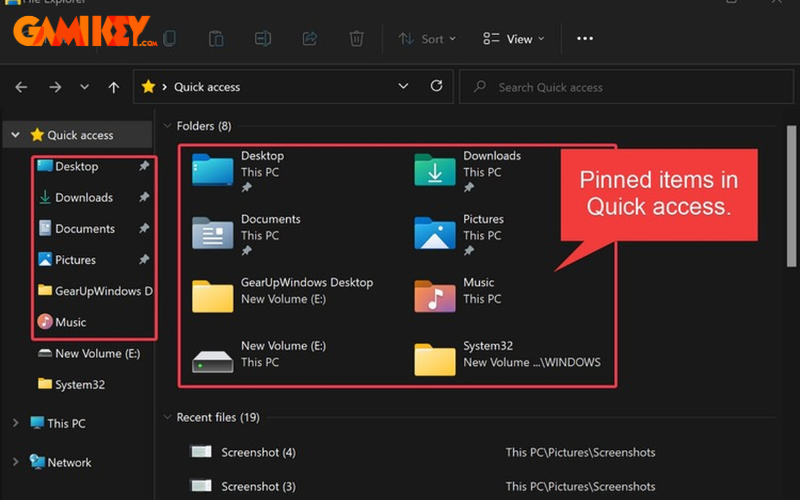
These capabilities collectively transform routine file handling into an efficient, enjoyable process, accommodating everything from casual home use to enterprise-level data administration.
Additionally, integration with Windows Search indexing accelerates queries, while compatibility with third-party extensions (via shell namespaces) allows customization for specialized needs, such as version control or media libraries.
Core Components of the Windows Explorer Interface
The layout of Windows Explorer is meticulously designed for optimal usability, comprising several interconnected elements:
- Ribbon Toolbar: A contextual command center with tabs (File, Home, Share, View, Manage) offering quick access to operations like cut/copy/paste, new folder creation, sharing options, and layout adjustments.
- Address Bar: Displays the current path with breadcrumb navigation, enabling clickable jumps to parent folders or direct path editing for precise location entry.
- Main Content Pane: The central area showcasing folder contents, supporting sortable columns for name, date modified, type, size, and custom attributes.
- Navigation Pane: Left sidebar featuring This PC, Quick Access, Libraries, Network locations, and a tree view of drives and folders for hierarchical browsing.
- Search Box: Embedded in the top-right corner, initiating real-time filtering as you type.
- Details and Preview Panes: Toggleable side panels providing metadata for selected items or live previews of supported file formats.
- Status Bar: Bottom section indicating item counts, selection sizes, and optional checksums or security information.
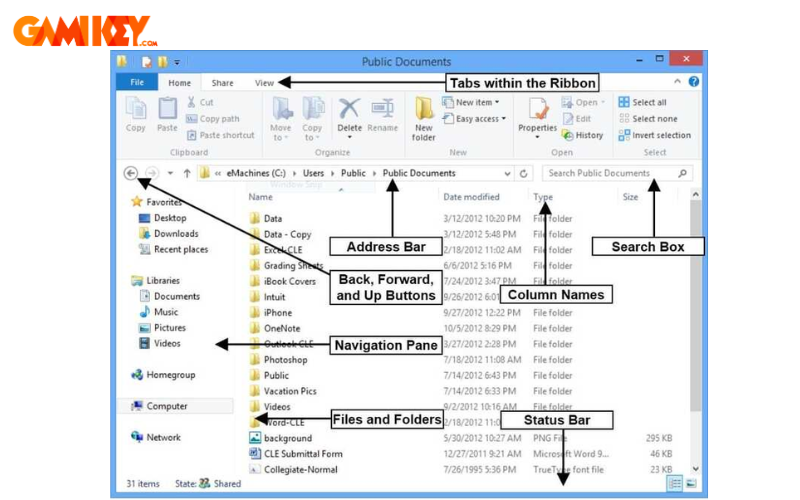
This modular architecture ensures intuitive navigation, with customizable visibility for panes to suit minimal or information-dense preferences. The design philosophy prioritizes discoverability, making advanced tools accessible without overwhelming beginners.
Over versions, enhancements like dark mode support, tabbed browsing experiments (in Insider builds), and tighter OneDrive integration continue to refine this foundational component.
Effective Methods to Launch Windows Explorer
Accessing Windows Explorer is straightforward, with multiple pathways catering to different user habits and scenarios. Here are proven techniques across Windows versions:
Keyboard Shortcut: The Fastest Approach
The universal shortcut Windows key + E instantly summons File Explorer, focusing on the Quick Access view. This method is ideal for keyboard-centric users seeking minimal disruption to their workflow.

Via the Start Menu Power User Options
Right-click the Start button (or press Windows key + X) to open the Power User menu, then select “File Explorer.” This context-sensitive menu groups essential system tools for quick administrative access.
Using the Run Dialog Box
Invoke Run with Windows key + R, type “explorer” (or “explorer.exe”), and press Enter. This command-line-inspired method reliably launches the default view and works even in restricted environments.

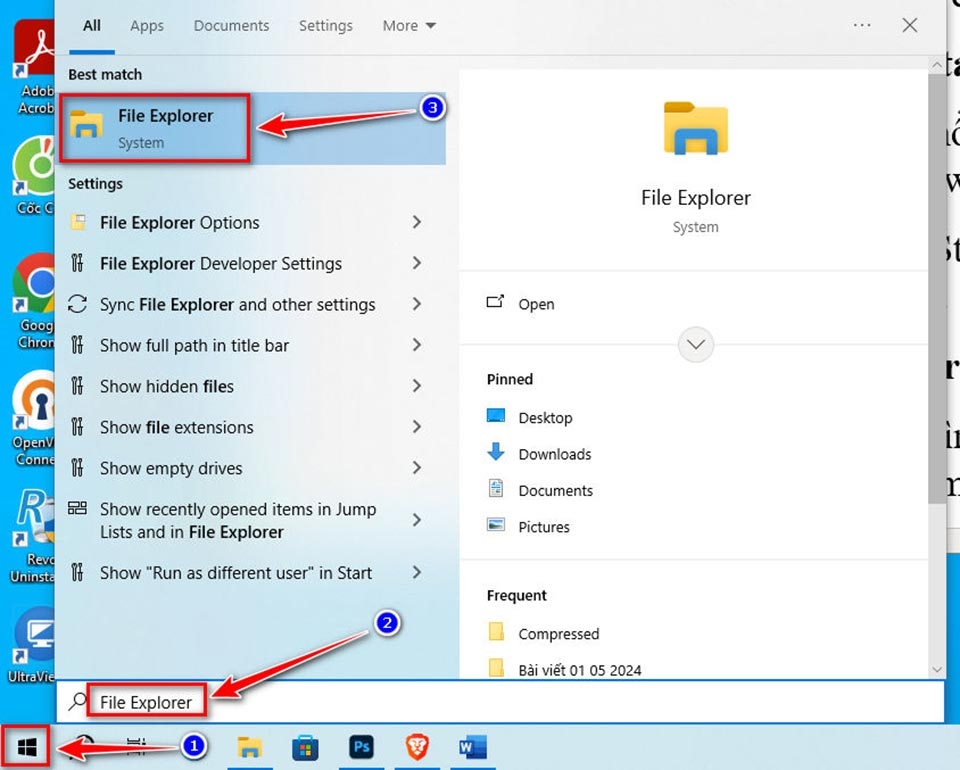
Through Windows Search or Cortana
Activate search with Windows key + S (or click the taskbar search icon), type “File Explorer,” and select the pinned or top result. In older versions, Cortana voice commands could similarly trigger it.
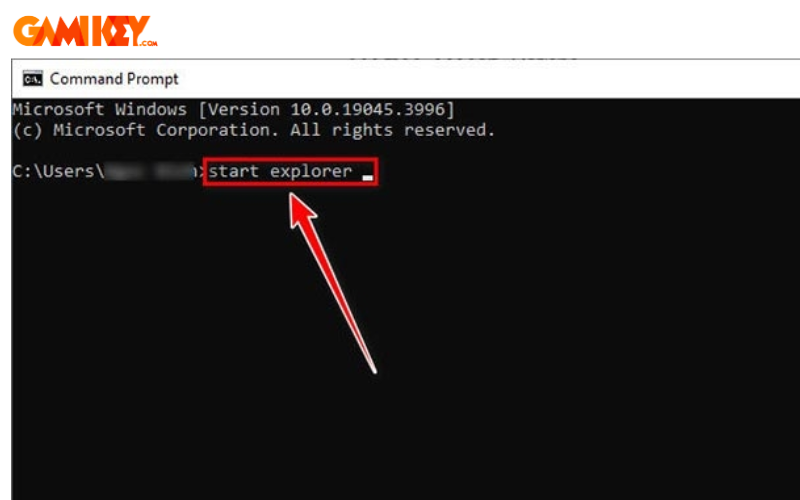
From Command Prompt or PowerShell
In an elevated or standard terminal, simply enter “explorer” and hit Enter. This approach is particularly useful for scripting or troubleshooting scenarios where graphical access is limited.
Additional Method: Taskbar Pinning
For frequent use, right-click the File Explorer icon on the taskbar and choose “Pin to taskbar.” Subsequent launches require only a single click, optimizing desktop real estate and access speed.
Frequently Asked Questions About Windows Explorer
What Are Libraries in Windows Explorer?
Libraries represent virtual folders that aggregate content from multiple physical locations based on file type or custom criteria. Default libraries include Documents (for office files), Pictures (images and photos), Music (audio tracks), and Videos (media clips). Users can expand these by including additional folders or creating bespoke libraries, simplifying access to scattered resources without duplicating data.
This feature promotes logical organization over rigid physical structures, particularly beneficial for users with external drives or network shares.
Is Windows Explorer an Operating System?
No. Windows Explorer (File Explorer) is merely a component—a shell application—within the broader Windows operating system. It interfaces with the OS kernel to provide graphical file management but does not constitute the OS itself.
Is Windows Explorer a Web Browser?
Absolutely not. Confusion sometimes arises due to historical naming overlaps with Internet Explorer, but Windows Explorer exclusively handles local and network file systems. Web browsing falls to dedicated applications like Microsoft Edge, Google Chrome, or Firefox.
In summary, Windows Explorer remains an indispensable tool for efficient file management in Windows ecosystems. Its continual refinements ensure relevance amid evolving storage paradigms, from traditional HDDs to cloud-hybrid setups. By leveraging its features and shortcuts outlined here, users can significantly enhance their daily computing efficiency.
For further exploration of Windows utilities and productivity tips, delve into related resources on system components and optimization strategies.