

Introduced initially in October 2010 as a beta for select organizations, Microsoft 365—formerly known as Office 365—marked a revolutionary shift in productivity software by embracing cloud technology. The public beta launched in April 2011, with the official release following on June 28, 2011. In April 2020, Microsoft rebranded Office 365 to Microsoft 365 to better reflect its expanded capabilities beyond traditional office tools. This comprehensive guide delves deeply into the essence of Office 365, its evolution into Microsoft 365, standout features, pricing structures, comparisons with perpetual versions, and essential account management practices.
Understanding Microsoft 365: Core Definition and Standout Capabilities
Microsoft 365 represents a sophisticated cloud-based subscription service that builds upon the foundational Microsoft Office suite while integrating advanced collaboration and productivity tools. Unlike traditional standalone installations, it leverages cloud computing to enable seamless access, real-time collaboration, and automatic updates across devices including desktops, laptops, tablets, and smartphones.
At its core, Microsoft 365 combines premium versions of classic applications—such as Word, Excel, PowerPoint, Outlook, OneNote, Publisher, and Access—with enterprise-grade services like Exchange Online for email hosting, SharePoint Online for intranet and document management, and Microsoft Teams for communication. This ecosystem empowers users with intelligent features powered by artificial intelligence, robust security protocols, and vast storage options.
Key advantages that distinguish Microsoft 365 include:
- Advanced Writing Assistance with Microsoft Editor: An AI-driven tool that goes beyond basic spell-checking to offer sophisticated grammar corrections, style suggestions, clarity enhancements, and inclusivity checks. It integrates natively into Word, Outlook, and extends support via browser extensions for Microsoft Edge and Google Chrome.
- Personal Finance Management through Money in Excel: Securely connects to financial institutions, imports transaction data automatically, and provides customizable templates for budgeting, expense tracking, and financial planning directly within Excel spreadsheets.
- Versatile Communication via Microsoft Teams: Originally designed for enterprise collaboration, Teams now excels in personal use cases, enabling users to create dedicated channels for family coordination, event planning, virtual gatherings, or hobby groups with integrated chat, video calls, file sharing, and task management.
- Comprehensive Family Protection with Microsoft Family Safety: A dedicated mobile app that allows parents to set screen time limits, filter inappropriate content, monitor driving habits (via location tracking), share real-time locations, and receive arrival/departure notifications for designated safe zones.
- Seamless Cloud Synchronization: Files uploaded to OneDrive are instantly synced across all signed-in devices, ensuring the latest version is always available and reducing the risk of data conflicts or loss.
- Real-Time Co-Authoring: Multiple users can edit the same Word document, Excel workbook, or PowerPoint presentation simultaneously, with changes appearing instantly and presence indicators showing who is working on which section.
- Integrated Instant Messaging: While collaborating on shared files, users can initiate chats or voice calls directly within the application interface using Microsoft Teams or legacy Skype for Business integrations.
- Effortless PDF Conversion and Editing: Native tools allow one-click export to PDF while preserving formatting, or direct editing of PDF files within Word without third-party software.
- Intelligent Bookmarking in Word Online: Users can insert customizable bookmarks that sync across devices, making it simple to resume reading lengthy documents from exactly where they left off.
- AI-Powered Designer Tools: PowerPoint Designer suggests professional layouts, icons, and images based on content; Excel Ideas analyzes data patterns and generates insights automatically.
- Enhanced Security Features: Built-in ransomware detection, data loss prevention, and multi-factor authentication protect sensitive information across the suite.
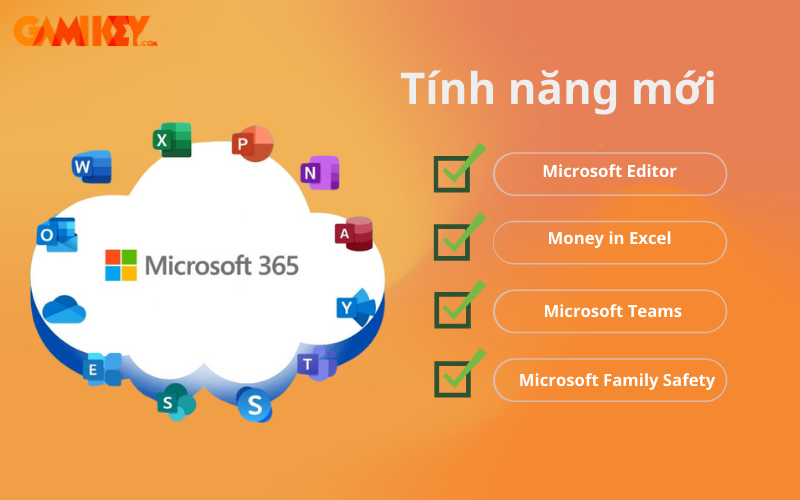
These capabilities transform Microsoft 365 into more than just office software—it becomes an intelligent productivity platform that adapts to individual, family, educational, and professional needs.
Current Pricing Options for Microsoft 365 Subscriptions
Microsoft 365 offers flexible subscription models tailored to different user segments: personal, family, educational, and business. Pricing varies by region, commitment length (monthly vs. annual), and included features. The following overview reflects typical structures (note that exact prices may fluctuate; always verify on the official Microsoft site).
| Plan Category | Microsoft 365 Family | Microsoft 365 Personal | Office Home & Student (One-Time Purchase) | Microsoft 365 Business Standard | Microsoft 365 Business Premium | Microsoft 365 Business Basic |
| Monthly Cost (Approx.) | Around 170,000 VND or equivalent | Around 130,000 VND or equivalent | One-time payment ~2,499,000 VND | ~12.50 USD per user (billed annually) | ~22 USD per user | ~6 USD per user |
| Annual Cost (Approx.) | ~1,699,000 VND (often discounted) | ~1,299,000 VND | N/A | Significant savings with annual billing | Advanced security included | Web and mobile apps only |
| User Limit | Up to 6 users | 1 user | 1 user (single device) | Unlimited (scaled for organizations) | Unlimited | Unlimited |
| OneDrive Storage | 1 TB per user (up to 6 TB total) | 1 TB | None included | 1 TB per user + shared storage | 1 TB per user + advanced compliance | 1 TB per user |
| Included Applications | Full premium desktop, web, and mobile apps | Full premium apps | Core apps only (no updates) | Desktop + web apps + Teams | All apps + endpoint management | Web and mobile versions |
| Additional Perks | Family Safety, Editor, Teams premium | Personal premium features | Basic installation | Business email, bookings | Advanced threat protection | Online services focus |
| Free Trial | Usually 1 month | Usually 1 month | No trial | 1 month available | 1 month available | 1 month available |
Choosing the right plan depends on usage patterns: families benefit most from shared storage, while businesses prioritize email hosting and compliance tools.
Key Differences Between Microsoft 365 and Perpetual Versions (Office 2019/2021)
The primary distinction lies in the delivery model—subscription versus one-time purchase—which impacts features, updates, and long-term value.
| Comparison Aspect | Microsoft 365 Subscription | Office 2019/2021 Perpetual License |
| License Duration | Ongoing subscription (monthly/yearly) | Perpetual (one-time payment) |
| Core Applications | Full suite including Publisher, Access, continual enhancements | Limited to Word, Excel, PowerPoint (varies by edition) |
| Feature Updates | Continuous rollout of new AI tools, templates, and capabilities | Security patches only; no new features post-release |
| Device Installation | Unlimited devices, simultaneous use on 5 | Single PC or Mac |
| Mobile Experience | Full-featured apps on all devices | Basic editing on small screens only |
| Cloud Integration | Extensive OneDrive, co-authoring, auto-save | No cloud storage included |
| Technical Support | Priority support throughout subscription | Limited to installation phase |
| Cost Over Time | Higher long-term but always current | Lower initial but eventually outdated |
For most modern users, the subscription model of Microsoft 365 delivers superior value through constant innovation and cross-device flexibility.
Best Practices for Managing Your Microsoft 365 Account
Securing and efficiently managing your Microsoft 365 account is crucial given its access to sensitive documents and communications. Regular maintenance ensures optimal performance and protection against unauthorized access.
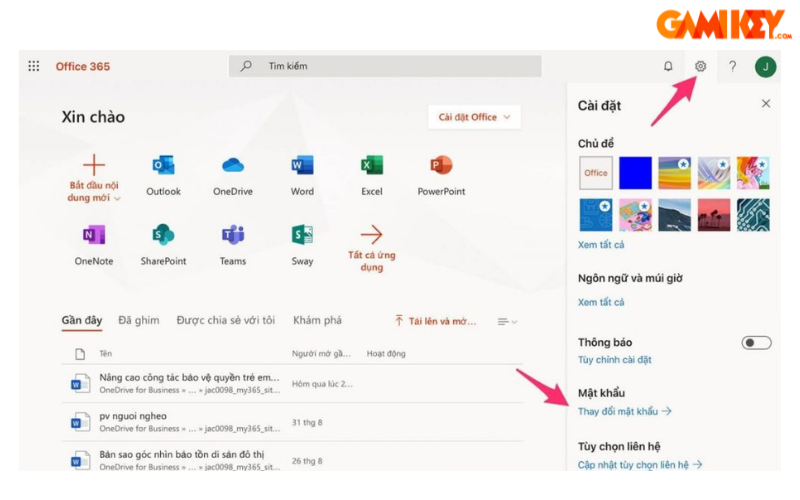
Step-by-Step Guide to Changing Your Password
- Step 1: Navigate to the Microsoft 365 portal (office.com) and sign in with your current credentials.
- Step 2: Click your profile icon in the top-right corner and select “View account” or “My Microsoft account.”
- Step 3: Under Security settings, choose “Password” → enter your existing password for verification → input the new strong password twice → confirm changes.
- Tip: Use a combination of uppercase, lowercase, numbers, and symbols; enable passwordless options like Windows Hello where available.
Recovering Access: Password Reset Procedure
- Step 1: On the sign-in page, after an incorrect attempt, select “Forgot my password.”
- Step 2: Verify identity via alternate email, phone number, or security questions previously configured.
- Step 3: Follow prompts to create a new password; optionally set up additional recovery methods for future incidents.
- Pro Tip: Enable multi-factor authentication immediately after recovery to add an extra security layer.
Additional account management recommendations include regularly reviewing active devices, monitoring sign-in activity logs, enabling advanced threat protection (available in premium plans), and utilizing the Microsoft Authenticator app for seamless verification.
In summary, Microsoft 365 stands as the premier cloud-powered productivity suite, continually evolving to meet diverse user demands with cutting-edge tools and unmatched flexibility. For authentic licenses and expert guidance, trusted resellers provide competitive offers and dedicated support.
Explore further resources on productivity software for the latest updates and in-depth tutorials.