

Adobe Audition stands as a premier digital audio workstation (DAW) renowned for its robust capabilities in professional audio production. Widely embraced by sound engineers, podcasters, filmmakers, and broadcasters, this powerful tool excels in capturing, refining, mixing, and mastering audio with unparalleled precision. In this comprehensive guide, we delve deeply into the essence of Adobe Audition, exploring its standout features and providing expert-level tutorials on how to use Adobe Audition effectively for various tasks.

Understanding Adobe Audition: A Professional Overview
Developed by Adobe Systems, Adobe Audition is an advanced audio editing suite that integrates seamlessly within the Creative Cloud ecosystem. It empowers users to handle complex audio projects with tools designed for high-fidelity recording, meticulous waveform manipulation, multitrack composition, and sophisticated effects processing. Professionals in music production, post-production for video, radio broadcasting, and podcasting rely on its intuitive yet deep functionality to achieve studio-quality results. The software’s non-destructive editing environment ensures flexibility, allowing endless experimentation without compromising original files.
Beyond basic editing, Adobe Audition incorporates AI-driven features like Adobe Sensei-powered tools for automatic noise reduction and speech enhancement, making it a forward-thinking choice in an era where audio clarity is paramount. Its cross-platform compatibility and regular updates keep it at the forefront of digital audio technology.
Key Features That Define Excellence in Adobe Audition
Adobe Audition distinguishes itself through a suite of innovative features tailored for professional workflows. Let’s examine these in detail:
High-Quality Audio Recording and Processing
The software supports direct recording from diverse inputs, including professional microphones, audio interfaces, and system sound. It handles a wide array of formats such as WAV, AIFF, FLAC, MP3, and more, ensuring compatibility across projects. Users benefit from real-time monitoring, punch-in recording, and metronome integration for precise timing during sessions.
Advanced Multitrack Editing Capabilities
At the heart of Adobe Audition lies its multitrack session environment, where creators layer multiple audio clips effortlessly. Features like clip grouping, automation lanes for volume, panning, and effects, plus elastic time stretching enable intricate arrangements. This is ideal for composing soundtracks, podcasts with layered dialogue and music, or complex sound design for film.
Professional Mixing and Mastering Tools
Equipped with a comprehensive mixer console, Adobe Audition offers channel strips with EQ, compression, and reverb sends. The Essential Sound panel simplifies tagging and applying presets for dialogue, music, SFX, and ambience. Mastering tools include multiband compressors and loudness meters compliant with broadcast standards like EBU R128.
Waveform Editing with Spectral Analysis
The waveform editor provides granular control, with tools for precise cuts, fades, and repairs. The Spectral Frequency Display visualizes audio in frequency domains, allowing targeted removal of artifacts like hums, clicks, or breaths using healing brushes or frequency-specific attenuation.
Extensive Effects Library and Plugin Support
Over 50 built-in effects cover reverbs, delays, modulation, dynamics, and restoration algorithms. Full VST3 and AU plugin compatibility expands possibilities, integrating third-party tools from developers like iZotope or Waves for specialized processing.

Step-by-Step Guide to Downloading and Installing Adobe Audition
Acquiring Adobe Audition is straightforward through Adobe’s Creative Cloud subscription model, which includes a free trial period.
- Visit the official Adobe website and navigate to the Adobe Audition product page. Click the option to start a free trial.

- Select a download location for the installer file and confirm the save action.
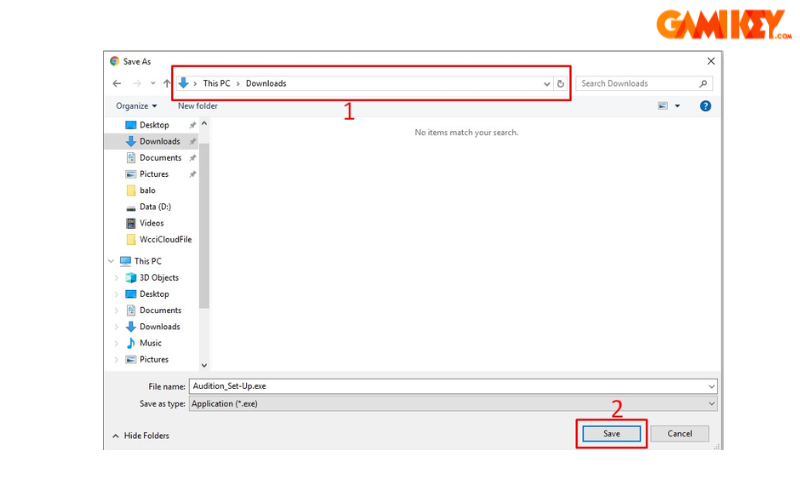
- Locate and execute the downloaded .exe file to launch the Creative Cloud installer.
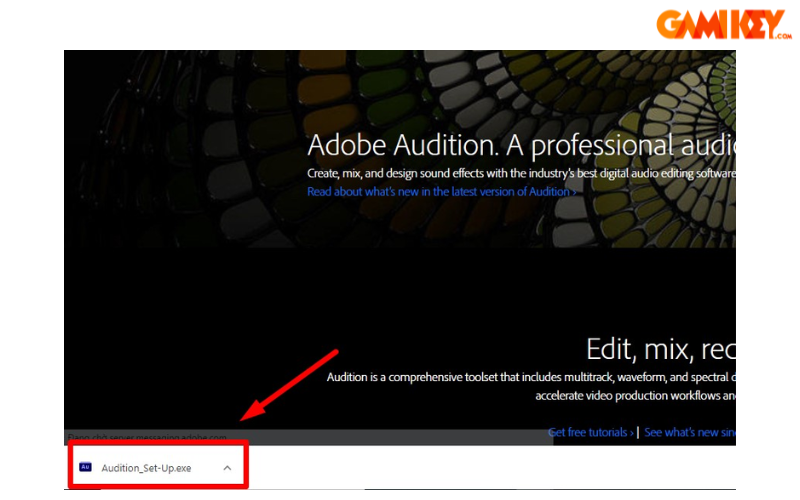
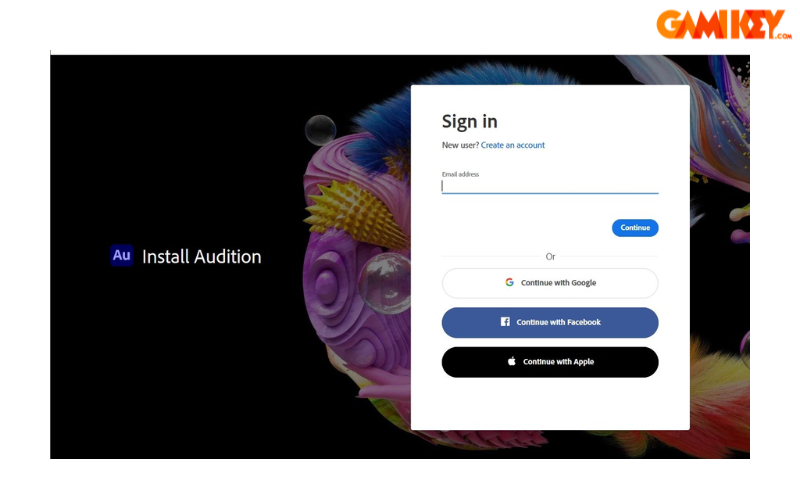
- Sign in to your Adobe account or create one using convenient options like Google or Apple credentials.
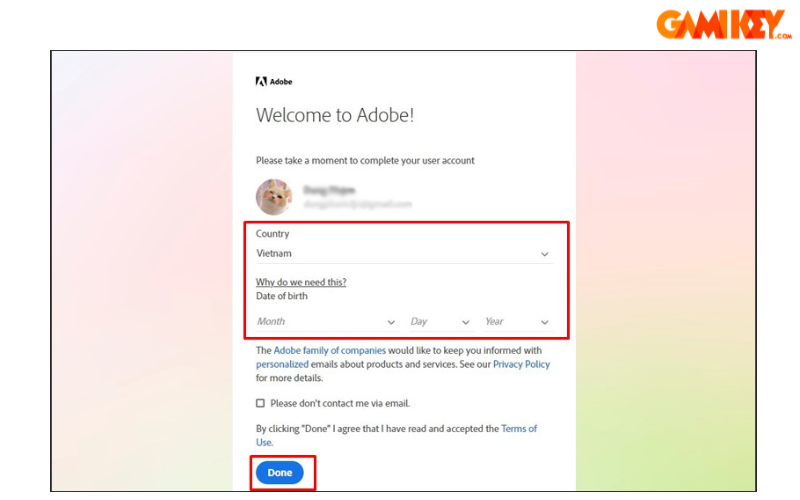
- Provide necessary profile information, such as region and date of birth, to complete setup.
- In the Creative Cloud app, select Adobe Audition for installation and initiate the process.
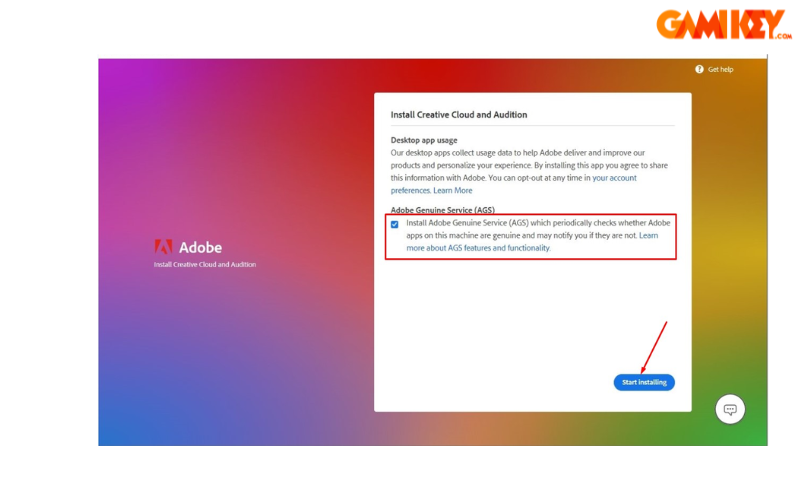
- Answer optional onboarding questions about your experience level and role to personalize recommendations.
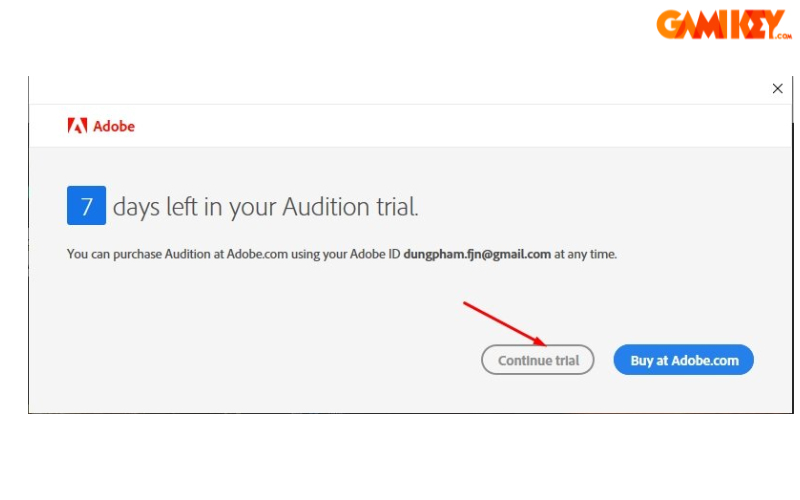
- Upon completion, launch the application and opt to continue with the trial period.
Mastering Audio Recording in Adobe Audition
Configuring optimal settings ensures pristine recordings. Follow this expert workflow:
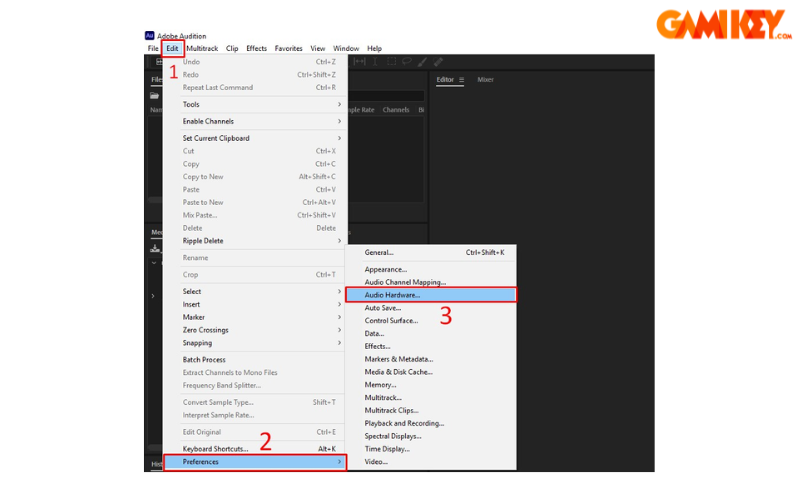
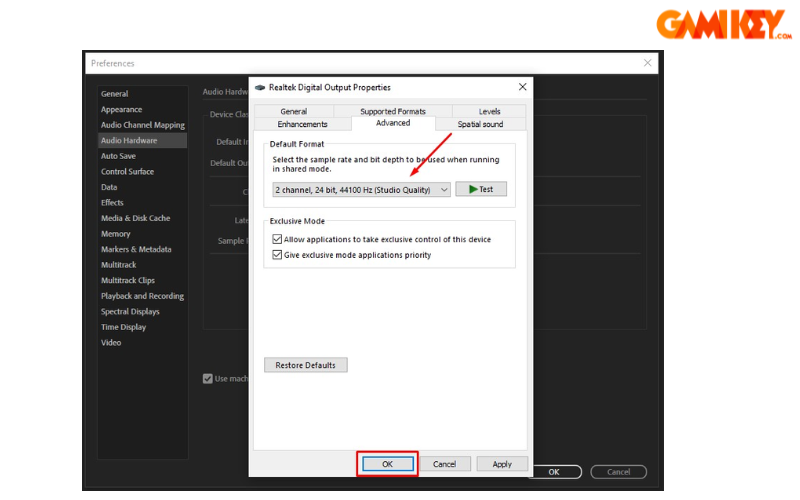
- Launch Adobe Audition and navigate to Edit > Preferences > Audio Hardware to select your input device.
- Access device properties and set advanced options to 24-bit depth at 44100 Hz for studio-grade quality.
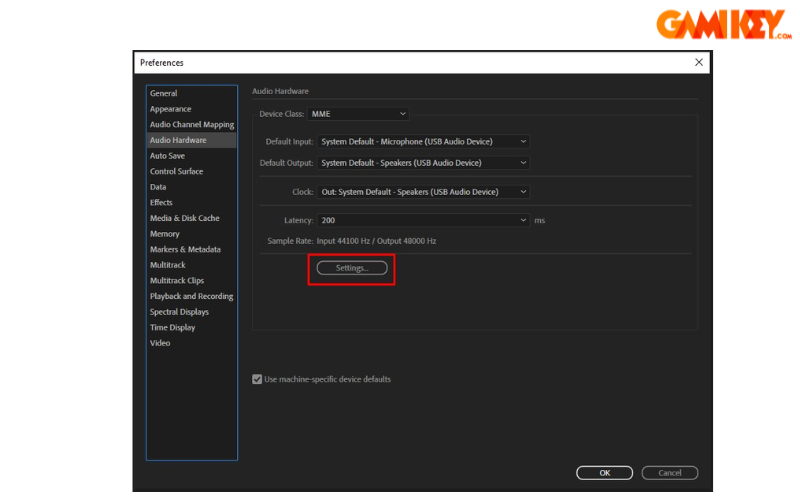
- Confirm settings and create a new multitrack session matching the sample rate.
- Arm the track for recording by enabling the ‘R’ button, then hit the red record icon to capture audio.
- Monitor levels carefully to avoid clipping, utilizing the input meters for real-time feedback.
Additional tips include using headphone monitoring to prevent latency issues and employing pre-amp controls for optimal gain staging. For voiceovers, the Vocal Enhancer effect can be applied live during recording in newer versions.
Expert Techniques for Noise Reduction in Adobe Audition
Eliminating background noise is crucial for professional results. Adobe Audition‘s adaptive noise reduction is among the best in class.
- Open your audio file via File > Open or drag-and-drop into the waveform editor.
- Zoom in and audition the file to isolate a noise-only section (e.g., room tone).
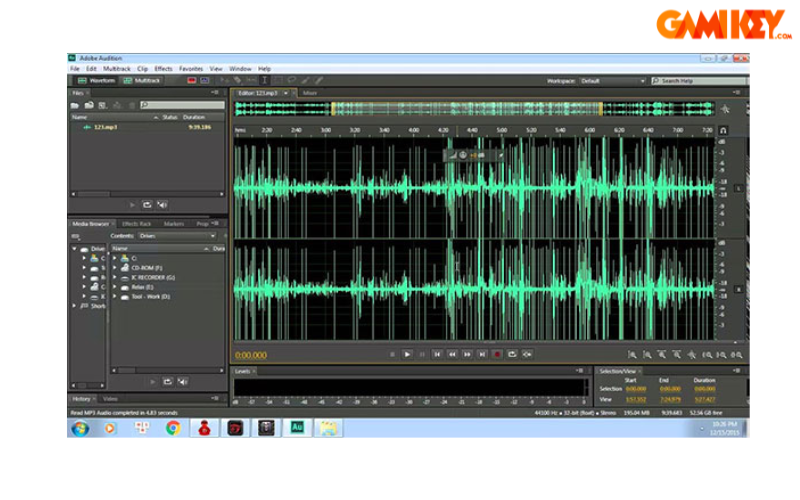
- Select the noise sample and capture a noise print (Effects > Noise Reduction > Capture Noise Print).
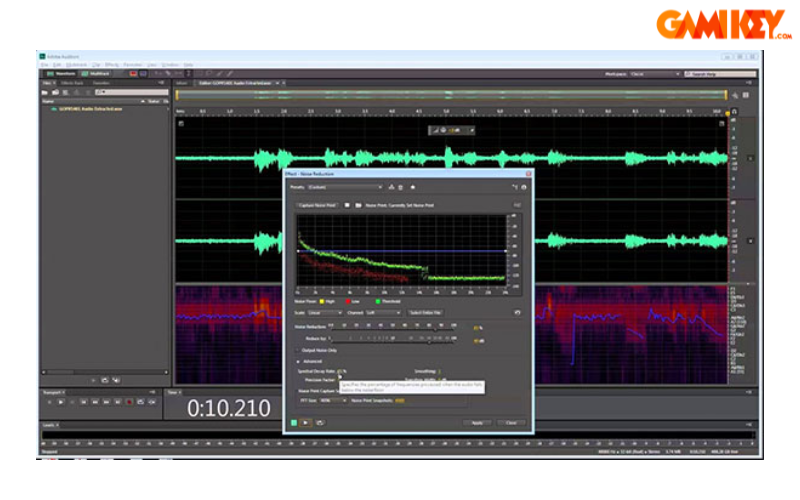
- Select the entire clip and apply Noise Reduction (process). Fine-tune parameters:
- Noise Reduction: 80-95% for aggressive removal without artifacts.
- Reduce By: 12-24 dB depending on noise intensity.
- Spectral Decay Rate: Higher values for smoother transitions.
- Enable FFT Size adjustments for better frequency resolution.
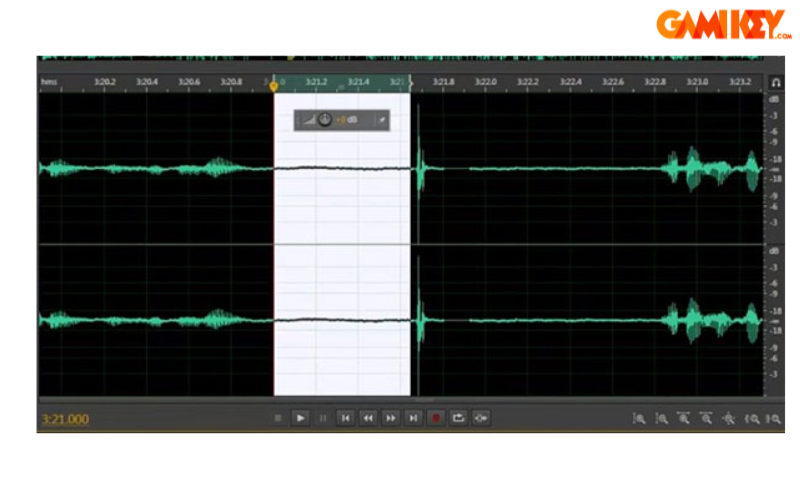
- Preview in real-time, iterate settings, and apply. Combine with DeHum or DeEsser for comprehensive cleanup.
- Export the cleaned file in desired format, ensuring proper loudness normalization.
Advanced users often chain effects: noise reduction followed by adaptive EQ, compression, and limiting for polished output. The Diagnostics panel can automatically detect and repair clicks, hums, or clipping.
This in-depth exploration of Adobe Audition equips you with professional insights and practical how to use Adobe Audition techniques. From installation to advanced noise management, these methods elevate your audio projects to industry standards. Experiment with integrations like Premiere Pro for seamless video-audio workflows or third-party plugins for expanded creativity.