

Microsoft Office stands as a comprehensive suite of productivity tools developed by Microsoft, encompassing various applications, services, and server solutions designed to enhance user efficiency. While it offers a multitude of features, understanding how to recover Microsoft Office files can be a challenge, especially for newcomers. Rest assured, this detailed guide from buyaitools will walk you through efficient and straightforward methods to restore your data seamlessly.
Key Benefits of Recovering Microsoft Office Files
- Safeguarding Your Information: Recovering files in Microsoft Office ensures that lost documents, emails, spreadsheets, and other essential items are retrieved, preventing permanent data loss from unexpected incidents.
- Efficiency in Time and Effort: Instead of recreating content from scratch, restoration processes allow you to quickly regain access to your work, minimizing downtime and boosting productivity.
- Preventing Data Loss Risks: By addressing issues like software glitches, hardware failures, or external factors, file recovery helps maintain the integrity of your projects and avoids costly setbacks.

Step-by-Step Guide on How to Recover Microsoft Office
Delving into the intricacies of how to recover Microsoft Office, we explore reliable techniques that leverage built-in features. These methods are user-friendly and can be applied across applications like Word, Excel, and PowerPoint. Whether you’re dealing with unsaved changes due to a sudden crash or accidental closure, the following approaches will equip you with the knowledge to retrieve your valuable work efficiently. It’s essential to act promptly, as temporary files may be overwritten over time. Moreover, understanding these processes not only aids in immediate recovery but also encourages proactive habits like regular saving and backups to cloud services such as OneDrive, which integrates seamlessly with Microsoft Office for enhanced data security.
Leveraging the Recover Unsaved Documents Feature
This method is often regarded as one of the quickest ways to restore unsaved files within the Microsoft Office ecosystem. It taps into the auto-save functionality that temporarily stores drafts, making it ideal for scenarios where your session ended abruptly without manual saving.
- Step 1: Launch the specific Microsoft Office application, such as Word, where you need to recover data, and navigate to the “File” tab in the upper-left corner.

- Step 2: From the menu that appears, select the “Open” command to proceed to the file browsing interface.

- Step 3: In the Open dialog box, scroll to the bottom section labeled Recent Documents and click on the “Recover Unsaved Documents” button to access hidden recovery files.

- Step 4: The File Explorer window will open directly to the UnsavedFiles folder, where temporary versions of your documents are stored. Identify the most recent file relevant to your work and open it to complete the recovery.
Expanding on this, it’s worth noting that Microsoft Office’s auto-recovery system periodically creates these backups in the background, typically every 10 minutes by default. However, if you’ve customized your settings, the frequency might differ. This feature is particularly useful in professional environments where power outages or system crashes are common risks. For instance, imagine working on a critical report in Excel; a sudden interruption could erase hours of data entry and analysis. By using Recover Unsaved Documents, you can often retrieve a version that’s only minutes old, drastically reducing rework. Additionally, integrating this with version history in OneDrive can provide even more layers of protection, allowing you to revert to previous iterations if needed.
Utilizing the Manage Document Tool
Another effective alternative for mastering how to recover Microsoft Office involves the Manage Document feature, which offers a centralized way to handle versions and unsaved content across your files.
- Step 1: Open the Microsoft Office program containing the unsaved file, then go to “File” followed by “Info” to view document properties and management options.

- Step 2: Within the Info section, locate and click on the “Manage Document” dropdown for recovery tools.

- Step 3: From the emerging menu, choose “Recover Unsaved Documents” to browse the temporary storage location.
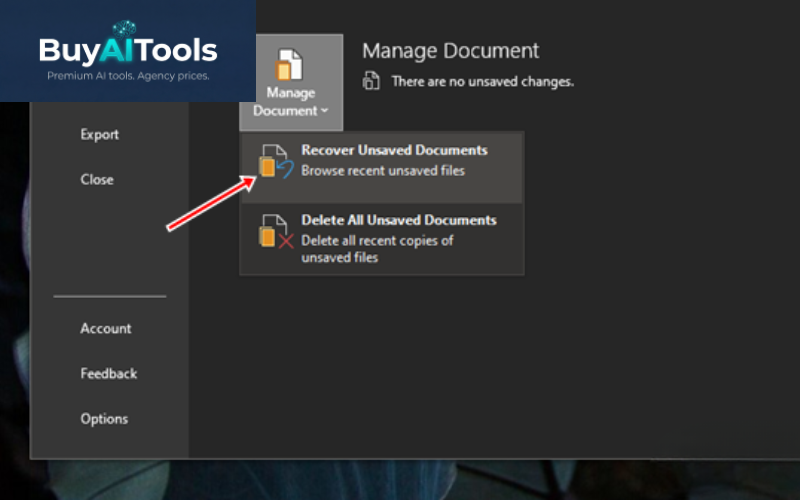
Upon selection, File Explorer will navigate to the UnsavedFiles directory, housing provisional copies of your documents. Simply select and open the latest version to restore your content. This approach is versatile and can be used for various file types, from PowerPoint presentations to Access databases.
Important Note: Avoid clicking “Delete All Unsaved Documents” if your goal is to preserve and recover data, as this action permanently removes all temporary files.
To mitigate future issues with saving Microsoft Office documents, consider adjusting the auto-backup settings for more frequent saves. This proactive step enhances data resilience and is a cornerstone of effective how to recover Microsoft Office strategies.
- Step 1: Start any Microsoft Office app, click “File,” and then select “Options” to enter the configuration menu.

- Step 2: In the Options dialog, switch to the “Save” tab and modify the “Save AutoRecover information every” setting to 1 or 2 minutes for optimal protection.

This comprehensive overview provides in-depth insights into how to recover Microsoft Office effectively. We trust this information empowers you to handle data restoration with confidence. For further exploration of software-related topics, visit the “Software” section on buyaitools.com.
Explore Related Articles:
How to Check Office Version
How to Retrieve Office License Key
How to Disable Microsoft Office Activation Wizard
Installation Guide for Office 2016
Beyond the basic steps, let’s delve deeper into why mastering how to recover Microsoft Office is crucial in today’s digital landscape. Microsoft Office has evolved from a simple word processor to a powerhouse suite that includes Word for document creation, Excel for data analysis, PowerPoint for presentations, Outlook for email management, and more. Each tool is integral to business operations, academic pursuits, and personal projects. However, data loss can occur due to various reasons: system crashes, power failures, accidental deletions, or even malware attacks. According to industry reports, data loss costs businesses billions annually, highlighting the importance of recovery knowledge.
One advanced tip is to enable the AutoSave feature if you’re using Microsoft 365, which automatically saves files to the cloud every few seconds. This not only complements the methods above but also allows cross-device access. For example, if your computer fails mid-edit on a Word document, you can pick up right where you left off on your tablet or phone via OneDrive. Furthermore, understanding file extensions is key; unsaved Word files often appear as .asd (AutoRecover documents), while Excel uses .xar. Knowing this can help when manually searching for files in the AppData folder, typically located at C:\Users\[YourUsername]\AppData\Roaming\Microsoft\[AppName].
In professional settings, IT administrators might configure group policies to enforce shorter AutoRecover intervals across an organization, ensuring minimal data loss during widespread issues like network outages. For individual users, combining these recovery techniques with third-party tools like Recuva or EaseUS Data Recovery Wizard can provide additional options for more complex scenarios, such as corrupted files. However, always prioritize built-in features for security and compatibility.
Consider a real-world scenario: A student working on a thesis in Word experiences a blue screen error. Without knowledge of how to recover Microsoft Office, they might panic and start over. But by following the Recover Unsaved Documents steps, they retrieve a near-complete version, saving days of work. Similarly, in corporate environments, sales teams relying on Excel spreadsheets for forecasts can avoid disasters by regularly checking Manage Document for versions.
To further enhance your workflow, explore keyboard shortcuts that speed up recovery. For instance, Ctrl + O opens the Open dialog quickly, where you can access recovery options. Also, enabling the “Keep the last AutoRecovered version if I close without saving” in Options ensures an extra safety net. Remember, prevention is better than cure; set up automatic backups to external drives or cloud storage, and use features like Track Changes in Word to maintain edit histories.
Diving into technical aspects, the AutoRecover function creates temporary files in a hidden folder, which are purged after a successful save or when the application closes normally. If issues arise, such as the recovery folder not appearing, it could be due to permission settings or disk space limitations. In such cases, running Office as administrator or clearing temp files might resolve it. For Mac users, the process is similar but accessed via the “Word” menu > “Preferences” > “Save,” adjusting AutoRecover there.
Statistics from Microsoft indicate that over 1.2 billion people use Office worldwide, making recovery skills universally valuable. Educational institutions often incorporate these tips into digital literacy courses, emphasizing their role in academic success. Businesses, too, train employees on these to reduce productivity losses. If you’re using older versions like Office 2010, note that recovery features might be less robust, prompting an upgrade to newer editions for better protection.
Another layer is integrating with Windows Backup and Restore or Time Machine on Mac, which can snapshot entire systems, including Office files. For encrypted documents, ensure you have the necessary keys before attempting recovery to avoid access issues. In collaborative settings, Shared Workbooks in Excel allow multiple users to edit without losing changes, complementing individual recovery methods.
Common pitfalls to avoid include ignoring prompts for recovery upon reopening the app after a crash—always review and save these immediately. Also, if files are stored on network drives, ensure connectivity before recovery attempts. For extensive data loss, professional services might be needed, but for most users, the outlined methods suffice.
In conclusion, equipping yourself with knowledge on how to recover Microsoft Office not only salvages lost work but also instills confidence in handling digital tools. By implementing these strategies and best practices, you can transform potential setbacks into minor inconveniences, maintaining seamless productivity in your daily tasks.