

Upgrade to official Spotify Premium Individual
Price range: 16$ through 30$
- Double-check your login credentials carefully before placing an order.
- Please clearly distinguish between a Spotify account and a Google account. Gamikey does not accept Google-based login credentials.
- Verify your account details at: https://accounts.spotify.com/vi/login
- One key requirement for upgrading is that your account must currently be on the Free plan. If you still have remaining time on an existing subscription, you must cancel it and wait until it fully expires.

For the Individual Plan
- Your account will be upgraded directly to Spotify Premium without joining a Family group.
- You retain full control over your account security and personal settings.
- Changes to the subscription type or payment method are not permitted.
For the Member of Family Plan
- Works across all devices that support Spotify, but streaming is limited to one device at a time.
- Your account must not have joined more than one Family plan within the past 12 months.
- If your account is currently logged in via phone number, Facebook, Google, or Apple ID, please access your account settings at https://www.spotify.com/vn-vi/account/overview/
- Your account region may be changed to another country; this will not affect your music streaming experience.
For the Owner of Family Plan
As the Family Owner, you will manage the plan and can add up to five additional members to your Spotify Family group.
Follow the steps below to add members to your Spotify Family account:
- Step 1: Log in to your Spotify account
Visit Spotify
and sign in using the main account registered for Spotify Family. - Step 2: Access the Spotify Family management page
After logging in, open the Account section at the top right corner and select Spotify Premium for Family to enter the Family management area. - Step 3: Invite members
On the Family management page, choose Invite Member. Enter an email address or share an invitation link with the person you want to add. Invited members must live at the same address as the account owner. - Step 4: Invitation acceptance
The invited person will receive an email or invite link from Spotify. They need to click the link, log in to their Spotify account (or create a new one), confirm the address, and then they will be added to your Family plan.
Notes:
- Each Spotify Family plan supports up to 6 users in total, including the main account.
- All members must reside at the same address in compliance with Spotify Family terms.
IMPORTANT: Your account must be on the Free plan. If your account is currently Premium, you must cancel the subscription and wait until it fully expires. Spotify plans available in this shop do not include podcasts.
Product information
Spotify Premium delivers the full power of Spotify’s music streaming service through a paid subscription. Subscribers gain access to uninterrupted listening, offline downloads, superior audio quality, and complete control over song selection without shuffle restrictions.
Key Features of Spotify Premium
Upgrading to Spotify Premium unlocks advanced tools that transform music consumption. These core benefits stand out.
- Ad-free experience. Music plays without interruptions from audio ads or banners.
- Offline playback. Download songs, albums, and playlists for listening without internet connection. Ideal for travel, flights, or areas with poor signal.
- High-quality audio. Stream at up to 320kbps bitrate. Details in vocals, instruments, and bass become sharper and more immersive.
- Full song selection. Pick and play any track instantly. Skip unlimited times. No forced shuffle mode.
- Multi-device support. Use the same account on phones, tablets, computers, smart speakers, and TVs simultaneously.
- Spotify Connect. Control playback from one device while streaming to another, such as sending music from phone to smart speaker.
- Playlist management. Create custom playlists. Edit them freely. Share with friends or make public for discovery.
- Special plans. Students qualify for discounted rates after verification. Family plans allow multiple individual accounts under one billing.
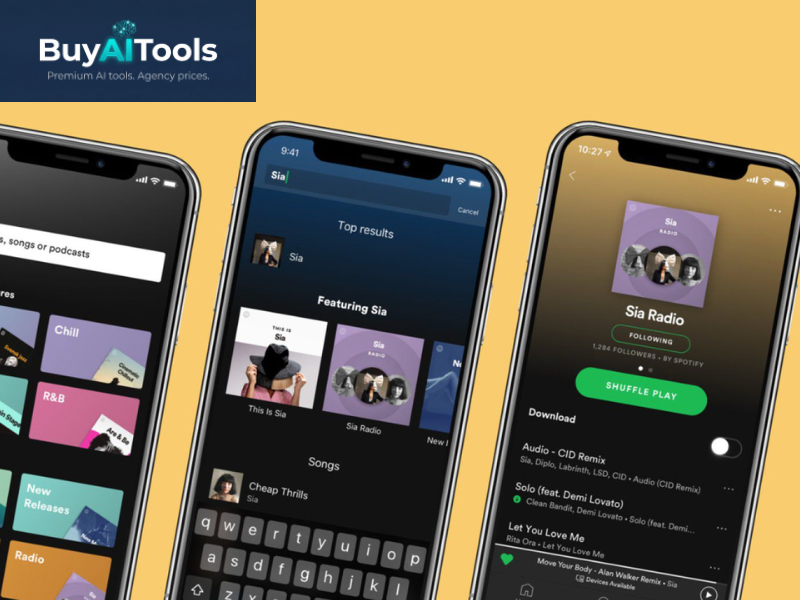
Spotify Premium vs Spotify Free Comparison
The differences between paid and free versions appear clearly in daily use. This table highlights main distinctions.
| Feature | Spotify Premium | Spotify Free |
| Audio quality | Up to 320kbps | Maximum 160kbps |
| Advertisements | None | Audio and visual ads interrupt playback |
| Offline listening | Full download support | Not available |
| Song choice | Select any track directly | Shuffle required on many playlists |
| Skip limit | Unlimited skips | Limited to 6 skips per hour on mobile |
| Spotify Connect | Full functionality across devices | Restricted on some platforms |
| Playlist creation | Complete editing and sharing | Limited customization |
| Access type | Online and offline | Online only |

Step-by-Step Guide to Subscribe to Spotify Premium
Activation process remains straightforward on both desktop and mobile browsers.
Subscribe on Computer
Follow these precise steps to activate Spotify Premium via web browser on PC or laptop.
Step 1. Open browser. Visit official Spotify site. Log in with existing credentials.
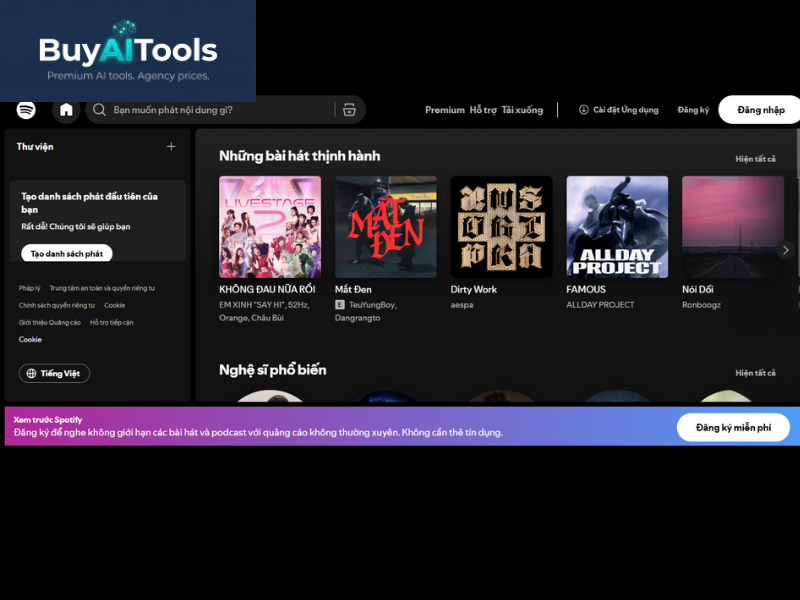
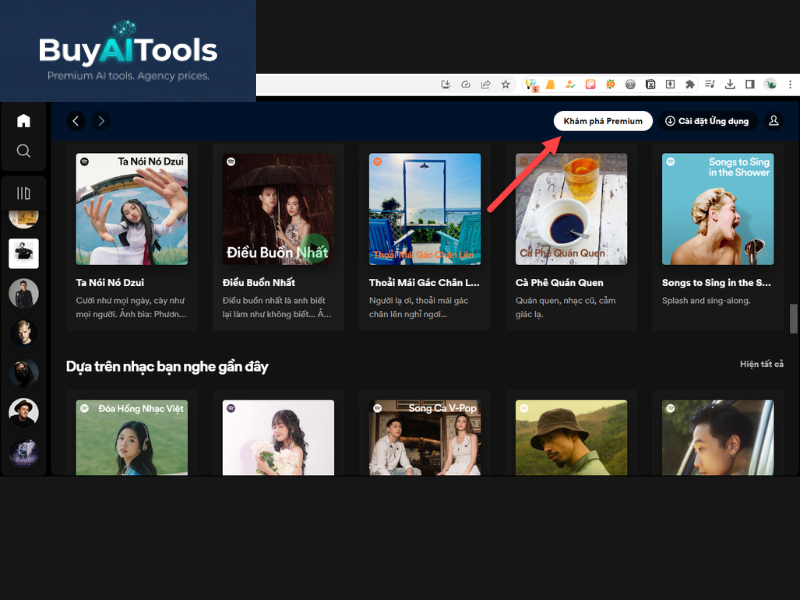
Step 2. Locate Premium option in top menu. Click to view plans.
Step 3. Choose free trial option. Standard plan follows trial period. Student discount applies after verification.
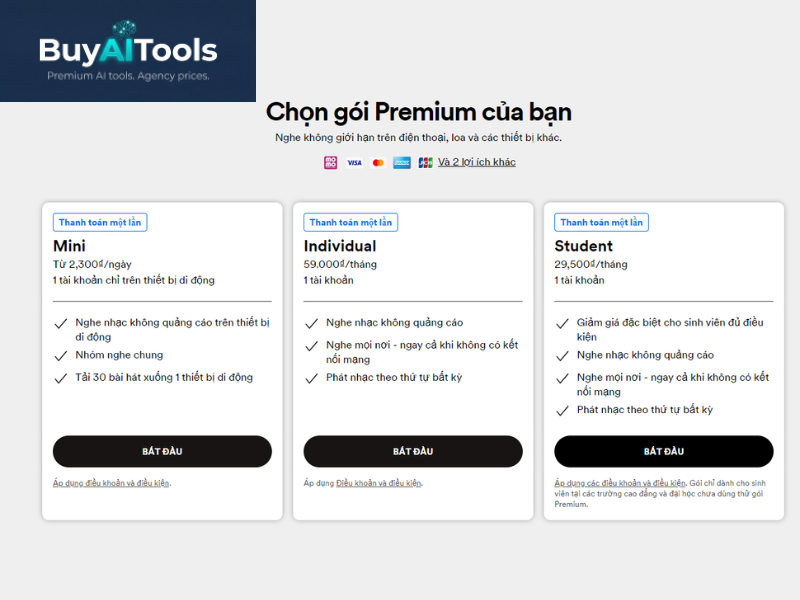
Step 4. Enter payment details. Options include credit card or digital wallets.
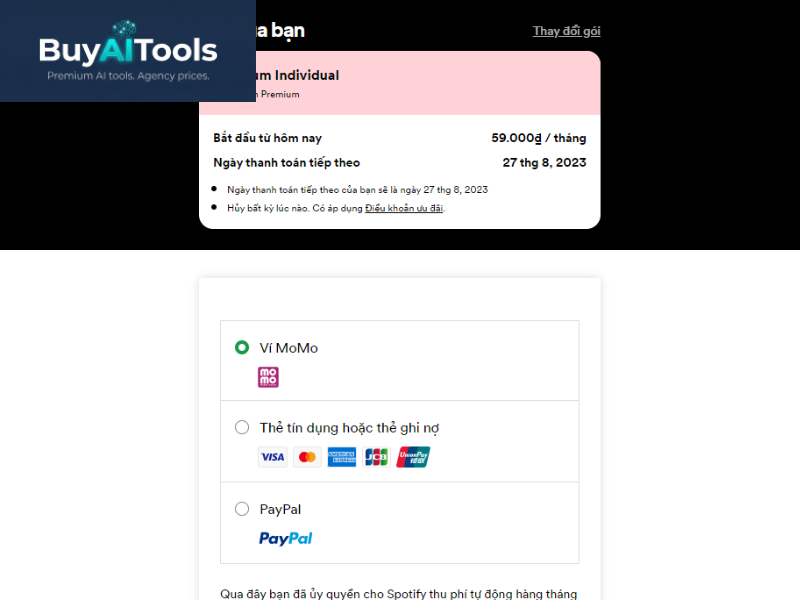
Step 5. Confirm trial activation. No charge applies during initial period. Subscription renews automatically afterward.
Subscribe on Mobile Phone
Use mobile browser for similar process.
Step 1. Launch browser. Navigate to Spotify website. Tap menu icon. Select login.

Step 2. After login, find Premium section through settings or menu.
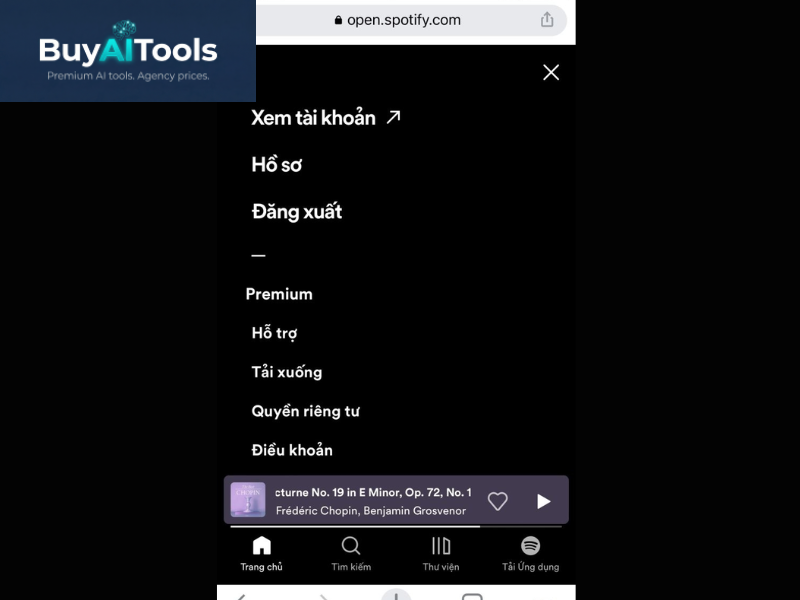
Step 3. Tap trial button to begin free period.

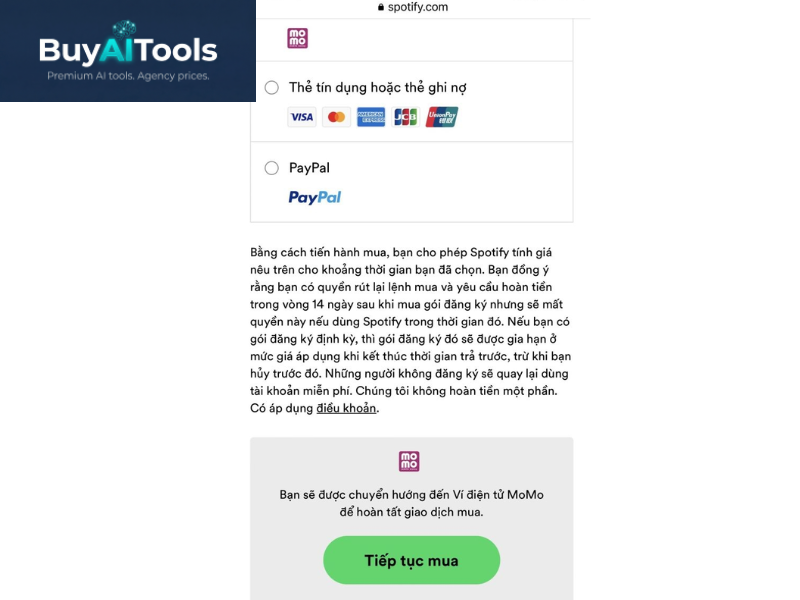
Step 4. Select payment method. Complete confirmation.
Spotify Premium Pricing Plans
Multiple subscription tiers exist to match different needs. Each offers specific limitations and benefits.
| Plan | Free | Individual | Student | Mini |
| Cost | No charge | Monthly fee | Reduced monthly (verified) | Weekly fee |
| Ads | Present | Absent | Absent | Absent |
| Offline | No | Yes | Yes | Single device only |
| Skips | Limited | Unlimited | Unlimited | Unlimited |
| Song pick | Restricted | Full choice | Full choice | Full choice |
| Audio quality | 160kbps max | 320kbps max | 320kbps max | 160kbps max |
| Devices | Unlimited login | Multiple | Multiple | One device |
Spotify Premium provides superior control and quality. Free version serves basic needs but includes trade-offs in flexibility and experience. Choose based on listening habits and connectivity patterns. Offline capability alone justifies upgrade for frequent travelers. High bitrate enhances enjoyment on quality headphones or speakers. Unlimited skips prevent frustration during discovery sessions. Multi-device freedom supports seamless transitions between home, work, and mobile setups.
Audio streaming has evolved rapidly. Services now compete on features beyond catalog size. Spotify Premium maintains leadership through consistent improvements in sound delivery and user control. Downloads use efficient storage. Up to 10,000 songs per device across five devices. Playlist organization tools help curate personal libraries. Collaborative playlists enable shared creation with friends. Discovery algorithms refine recommendations based on listening history.
Sound quality matters significantly. 320kbps delivers near-CD level on good equipment. Lower rates compress data more aggressively. Differences appear in high frequencies and dynamic range. Bass response tightens. Vocals gain clarity. Instrument separation improves. Listeners with wired headphones or external DACs notice gains immediately.
Ad removal creates focused sessions. Free users encounter interruptions every few tracks. These breaks disrupt flow during workouts or study periods. Premium maintains momentum. Concentration stays on music rather than waiting for ads to end.
Device ecosystem integration expands possibilities. Smart speakers respond to voice commands. Car systems connect via Bluetooth or Android Auto. Gaming consoles stream background audio. Smart TVs provide large-screen interface for party playlists. All function under single subscription.
Student verification requires school email or documentation. Discount lasts until graduation or verification expiration. Family plans support up to six members at reduced per-person cost. Each gets private account with individual recommendations.
Mini plan targets occasional users. Weekly billing offers flexibility without long commitment. Limited to one device and lower bitrate. Still removes ads and allows full selection.
Subscription management occurs in account settings. Cancel anytime without penalty. Trial period provides full access before billing starts. Payment methods update easily. Regional pricing reflects local markets.
Library organization tools include folders for playlists. Liked songs compile automatically. Daily mixes generate fresh content. Year-end Wrapped summaries highlight listening patterns. Podcasts integrate seamlessly with same interface.
Data usage adjusts per quality setting. High mode consumes more bandwidth. Automatic adjustment switches based on connection type. Wi-Fi prioritizes quality. Mobile data conserves volume.
Account security features protect access. Two-factor authentication available. Session management shows active devices. Remote logout possible for unrecognized logins.
Global catalog exceeds 100 million tracks. New releases appear simultaneously with physical formats. Exclusive content includes artist podcasts and early albums. Regional libraries vary by licensing agreements.
Crossfade settings smooth transitions between tracks. Gapless playback eliminates silence in albums. Volume normalization maintains consistent levels across songs.
Equalizer adjustments available on mobile apps. Preset options suit genres. Custom curves save for different headphones.
Sleep timer fades volume gradually. Canvas feature adds looping visuals to tracks. Lyrics display scrolls in real-time on supported songs.
Social features connect listeners. Follow friends. View their public playlists. Blend creates combined mixes from multiple users’ tastes.
Artist support comes through streaming revenue. Premium subscribers generate higher payouts per stream than free users with ads.
Platform updates roll out regularly. New features test with select users before wide release. Feedback shapes development priorities.
Music discovery tools include Release Radar for new tracks and Discover Weekly personalized playlists. Both update regularly based on listening behavior.
High-fidelity plans emerge in some markets. Lossless audio options appear for audiophiles with compatible hardware.
Service reliability remains high. Outages occur rarely. Customer support handles billing and technical issues efficiently.
Overall, Spotify Premium delivers comprehensive music experience. Features combine convenience, quality, and discovery in one package. Users invest in uninterrupted access to vast catalog with full control.
Related products




Reviews (0)
No comments yet
Review Upgrade to official Spotify Premium Individual
There are no reviews yet.