

Have you ever explored the powerful capabilities of Adobe InDesign, the industry-standard tool for professional layout design? This sophisticated software empowers designers to craft stunning publications, from magazines and books to brochures and digital catalogs. With its advanced features and intuitive workflows, it has become an essential asset for graphic professionals worldwide. In this comprehensive guide, we delve deeply into what makes Adobe InDesign a standout choice, exploring its core strengths, comparisons with related tools, standout functionalities, real-world applications, and essential usage techniques.
What Exactly is Adobe InDesign?
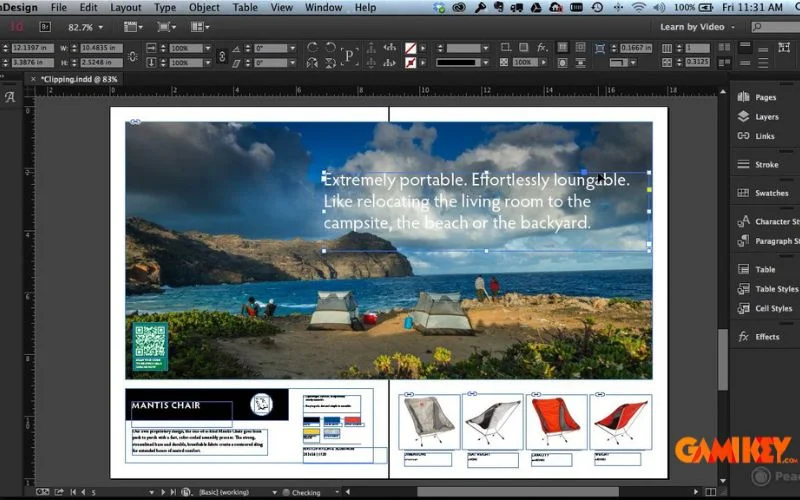
Adobe InDesign stands as a premier desktop publishing application developed by Adobe Systems, specifically engineered for creating complex, multi-page layouts that seamlessly integrate text, imagery, and graphical elements. It excels in producing high-quality print and digital materials, making it the go-to solution for publishing professionals, marketing teams, and creative agencies.
Unlike general-purpose design tools, Adobe InDesign prioritizes precision in typography, page management, and output preparation. It allows creators to handle extensive documents with hundreds of pages while maintaining consistency across elements like headers, footers, and styling. Its robust framework supports interactive digital publications, including eBooks and interactive PDFs, ensuring versatility in today’s hybrid print-digital landscape.
The software’s strength lies in its ability to orchestrate large-scale projects efficiently. Designers can import content from various sources, apply sophisticated styling rules, and automate repetitive tasks, resulting in polished outputs that meet rigorous professional standards. Whether crafting annual reports, editorial spreads, or branded collateral, Adobe InDesign delivers unparalleled control and creativity.
Key Differences: Adobe InDesign vs. Adobe Illustrator
To appreciate Adobe InDesign‘s unique position in the Adobe Creative Cloud ecosystem, it’s helpful to contrast it with Adobe Illustrator, another powerhouse for vector-based design. While both tools handle graphics exceptionally well, their intended workflows and strengths diverge significantly.
| Criteria | Adobe Illustrator | Adobe InDesign |
|---|---|---|
| Primary Purpose | Creating scalable vector artwork such as logos, icons, illustrations, and infographics. | Layout and composition of multi-page documents including magazines, books, brochures, and catalogs. |
| Target Projects | Single-artwork designs requiring intricate vector manipulation and infinite scalability. | Complex publications needing precise text flow, page sequencing, and consistent styling across multiple pages. |
| File Formats | Native .AI files with strong support for vector exports like EPS and SVG. | Native .INDD files optimized for publishing, with seamless export to PDF, EPUB, and interactive formats. |
| Vector Editing | Advanced tools for detailed path creation, gradient meshes, and complex shapes. | Basic vector capabilities focused on placement rather than intensive creation. |
| Page Management | Limited to artboards; not ideal for extensive multi-page organization. | Powerful master pages, threading, and pagination tools for large documents. |
| Text Handling | Suitable for short headlines or artistic text effects. | Professional-grade typography with paragraph styles, OpenType support, and long-document flow. |
| Print Preparation | Excellent for single-piece vector prints like posters or packaging. | Optimized for multi-page color management, preflight checks, and commercial printing standards. |
| Graphic Focus | Core emphasis on building custom illustrations from scratch. | Excels at assembling and arranging pre-created assets into cohesive layouts. |
| Integration | Works seamlessly with Photoshop and InDesign for asset creation. | Deep integration with Photoshop and Illustrator for live-linked updates and workflow efficiency. |
Standout Features That Define Adobe InDesign Excellence
Adobe InDesign distinguishes itself through a suite of sophisticated tools designed to streamline professional publishing workflows. Here are some of its most compelling capabilities:
- Advanced Path and Layer Tools: Precise drawing instruments allow for intricate shapes and effects, including drop shadows, bevels, inner glows, and feathering—mirroring Photoshop’s layering power within a layout context.
- Seamless Text Import: Directly place content from Microsoft Word or other sources while preserving styling, bullet points, and formatting, minimizing cleanup time.
- Comprehensive Glyphs and Special Characters Panel: Access an extensive library of symbols, footnotes, endnotes, and breaks, enabling typographic finesse without external resources.
- Built-in Preflight Checker: Real-time error detection for issues like missing fonts, low-resolution images, overset text, or color space mismatches before final export.
- Package Functionality: Collect all linked assets, fonts, and project files into a single folder, complete with a detailed report—ideal for handing off to printers or collaborators.
- Live Linking with Creative Cloud Apps: Place Photoshop or Illustrator files that update automatically when originals change, ensuring version consistency across projects.
- Customizable Interface and Keyboard Shortcuts: Tailor panels, workspaces, and shortcuts to match individual preferences, accelerating productivity for experienced users.
- Paragraph and Character Styles: Define reusable styling rules for headings, body text, captions, and more, guaranteeing visual uniformity across lengthy documents.
- Interactive Elements for Digital Publishing: Add buttons, hyperlinks, animations, video embeds, and multimedia to create engaging PDFs or EPUBs.
- Content Collector and Placer Tools: Efficiently gather elements from one layout and redistribute them elsewhere, perfect for repetitive designs.
Real-World Applications: Projects Brought to Life with Adobe InDesign
The versatility of Adobe InDesign shines through in diverse professional outputs. Below are prominent examples of materials commonly produced using this software:
Magazines and Editorial Publications
From high-fashion glossies to niche industry journals, Adobe InDesign dominates magazine production. Designers leverage grid systems, style sheets, and master pages to maintain editorial consistency while accommodating varied content like feature articles, photo spreads, and advertisements.
- Retro-style magazines incorporate vintage gradients, ornate typography, and textured backgrounds for nostalgic appeal.
- Digital eMagazines feature interactive navigation, embedded media, and responsive layouts optimized for tablets and smartphones.
- Annual reports combine data visualization, infographics, and narrative text in sophisticated, branded formats.
Brochures, Flyers, and Promotional Materials
Marketing collateral benefits immensely from Adobe InDesign‘s precise folding guides, bleed settings, and color management. Tri-fold brochures, event flyers, and product sheets achieve eye-catching designs that drive customer engagement while adhering to print specifications.
Businesses rely on these materials for trade shows, direct mail campaigns, and in-store promotions, where compelling visuals and clear messaging are paramount.
Fashion Lookbooks and Catalogs
Seasonal lookbooks showcase collections through full-bleed photography, minimalist typography, and elegant pacing. Adobe InDesign enables seamless integration of high-resolution images with descriptive captions, creating immersive brand experiences.
Product catalogs, whether print or digital, organize vast inventories with indexed pages, pricing tables, and cross-references, facilitating easy navigation for buyers.
Professional Portfolios and Resumes
Creative professionals—graphic designers, photographers, architects, and web developers—craft bespoke portfolios highlighting their best work. Custom templates allow personalized layouts that reflect individual branding and storytelling.
Interactive digital portfolios include hyperlinks to online projects, animated transitions, and embedded videos, elevating traditional PDF resumes.
Essential Guide to Getting Started with Adobe InDesign
Mastering Adobe InDesign begins with understanding foundational concepts and tools. The following sections provide detailed insights into core techniques for efficient workflow establishment.
Setting Up Margins and Bleeds
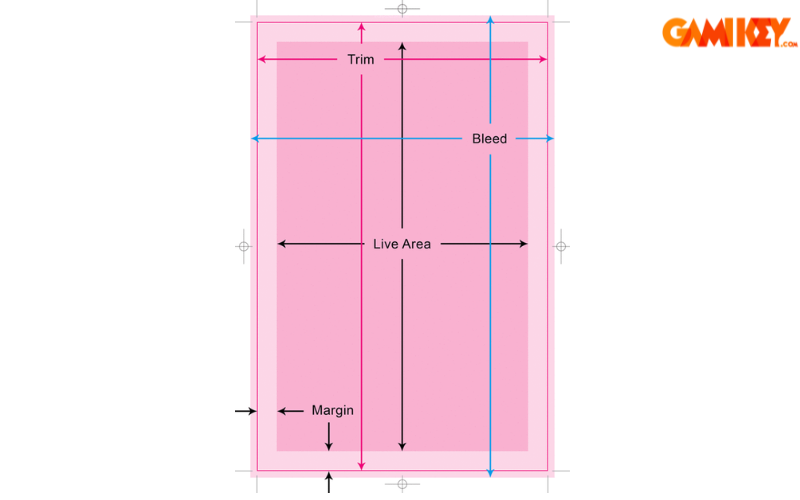
Proper document setup prevents printing mishaps. Margins define safe areas for critical content, while bleeds extend artwork beyond trim edges to avoid white borders after cutting.
For print projects, standard margins range from 0.5 to 1 inch, with 0.125–0.25 inch bleeds. Configure these in the New Document dialog for accuracy from the outset.
Utilizing Master Pages Effectively
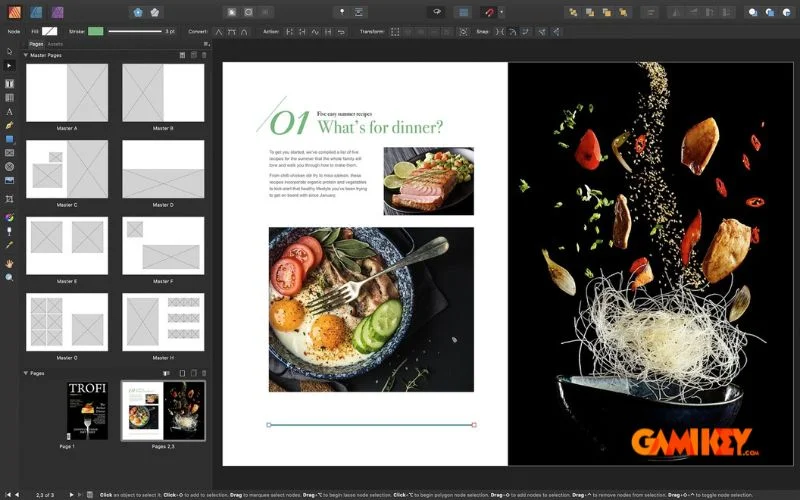
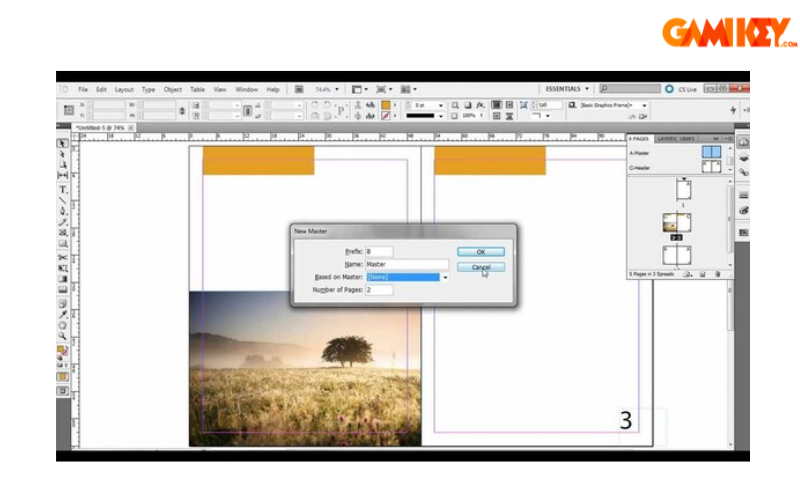
Master pages serve as templates for recurring elements—page numbers, logos, column guides, and backgrounds—applied across document pages automatically.
Create multiple masters for varying layouts (e.g., chapter openers vs. standard spreads) and override specifics on individual pages as needed. This approach ensures brand consistency while allowing flexibility.
Working with Frames
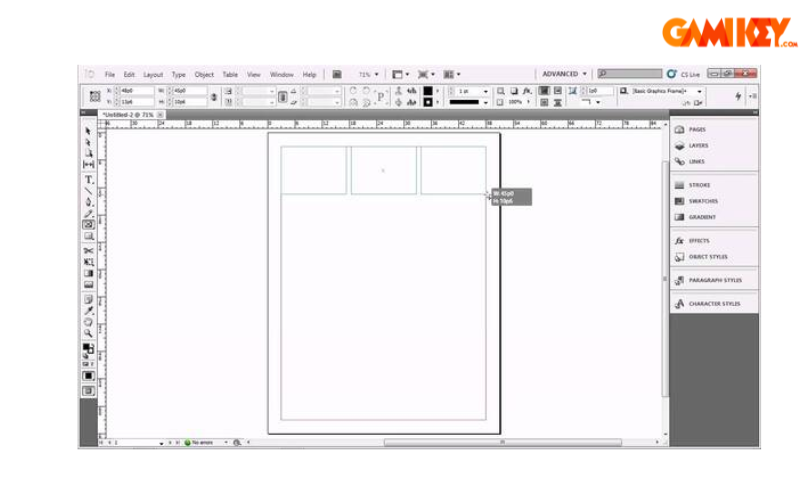
All content in Adobe InDesign resides within frames—rectangular, circular, polygonal, or custom-shaped containers for text or graphics.
Use the Rectangle Frame Tool for images and the Type Tool for text. Frames can be threaded to flow content across pages, resized, rotated, or fitted with objects intelligently.
Selecting Overlapping Frames
When elements overlap, direct selection becomes challenging. Hold Command (Mac) or Control (Windows) while clicking to cycle through stacked objects, or use the Layers panel for precise control.
Image Formats and Best Practices
Adobe InDesign supports numerous raster and vector formats. For print, prioritize 300 DPI images in CMYK mode; for digital, RGB suffices.
Common formats include TIFF and PSD for layered edits, PNG for transparency, and JPEG for photographs. Always check the Links panel for resolution warnings.
Importing PSD Files with Layers
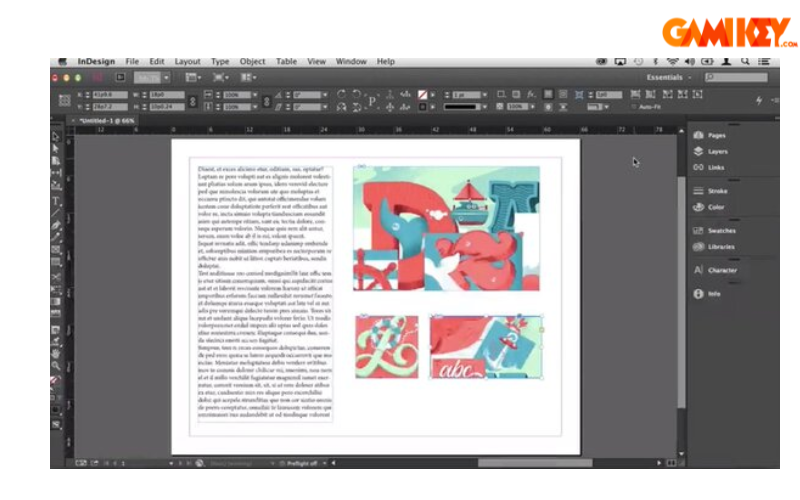
Placing Photoshop files preserves layers, masks, and transparency. The Object Layer Options dialog lets you toggle visibility directly in InDesign, enabling non-destructive adjustments without returning to Photoshop.
Adobe InDesign continues to evolve, incorporating AI-driven features like Content-Aware Fit, Subject-Aware Text Wrap, and generative tools for enhanced creativity. Its integration within Creative Cloud ensures smooth collaboration and asset sharing. For professionals seeking reliable licensing options, authorized resellers provide secure access to the latest versions.