

TikTok has rapidly become one of the world’s leading entertainment platforms, captivating millions with its short, engaging videos. However, its explosive growth has also brought an increase in accounts sharing inappropriate, spammy, or harmful content. To maintain a positive and safe experience, blocking such accounts is an essential feature. In this comprehensive guide from Gamikey, we will walk you through every aspect of how to block TikTok accounts, including step-by-step instructions for mobile and desktop, how to unblock, key benefits, and important facts you should know.
Step-by-Step Guide: How to Block Someone on TikTok
Blocking a user on TikTok is a straightforward process that works slightly differently on mobile devices and computers. Follow these clear instructions to take control of your feed and interactions.
Blocking on Mobile Devices (iOS & Android)
Most users access TikTok via the mobile app, so let’s start with the easiest and most common method.
- Open the TikTok app on your smartphone and use the search bar at the top to locate the profile you wish to block.
- Once on their profile page, tap the three-dot icon (⋯) located in the top-right corner.
- From the pop-up menu, select the “Block” option.
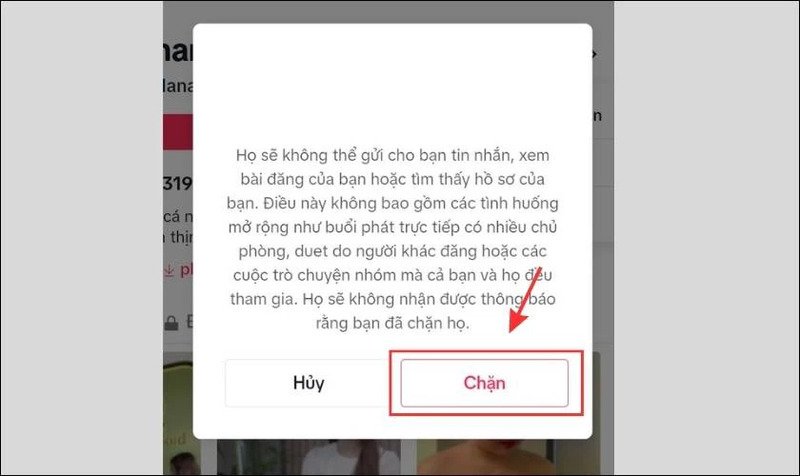
- A confirmation prompt will appear. Tap “Block” again to finalize the action.
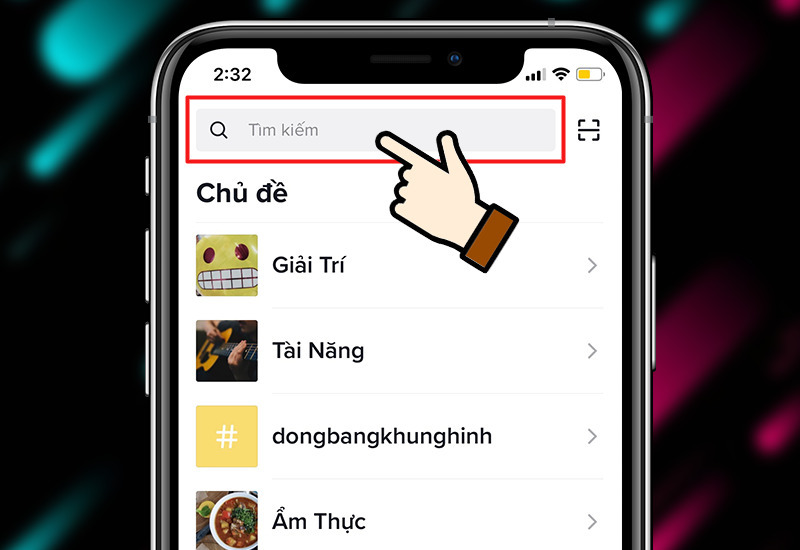
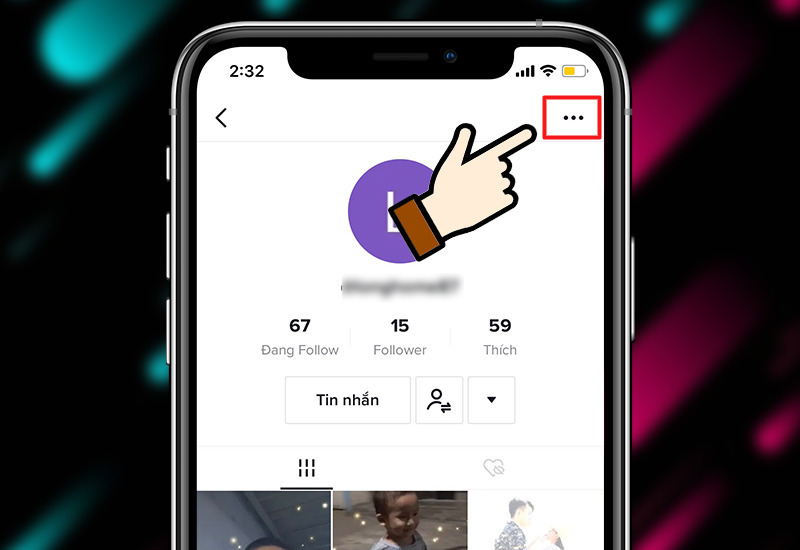
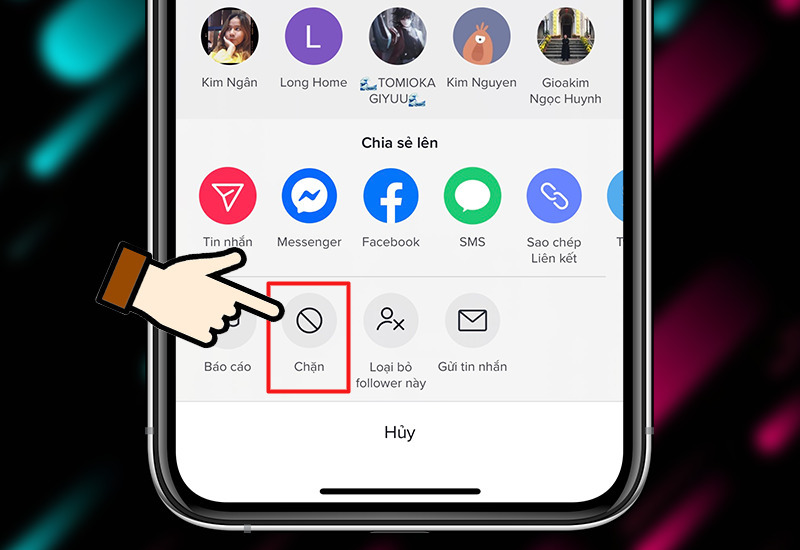
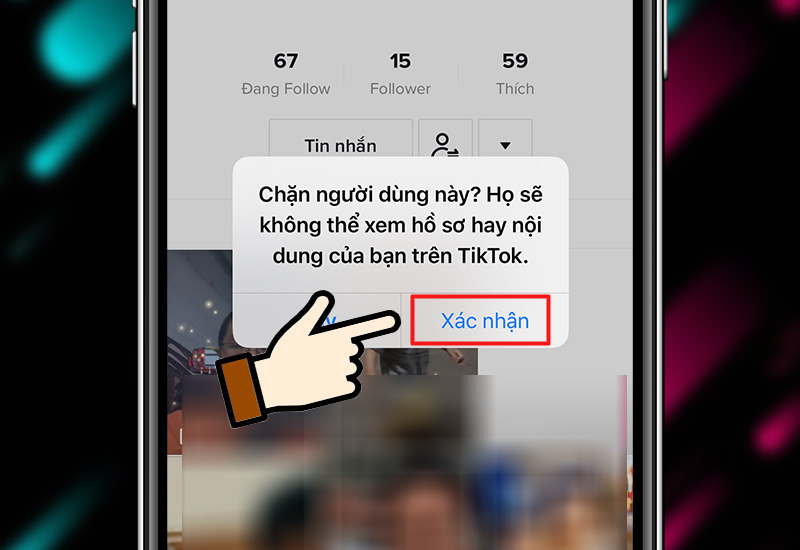
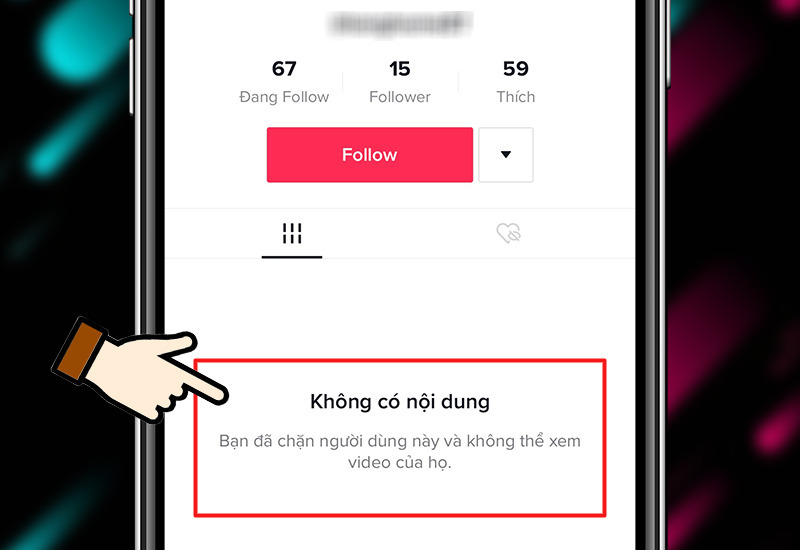
Once blocked, all interactions between you and the account are completely disabled. They cannot view your videos, like, comment, follow, or send messages, and their content will no longer appear in your feed or recommendations.
Blocking on Desktop (Web Browser)
If you use TikTok on a computer, the process is nearly identical but uses mouse clicks instead of taps.
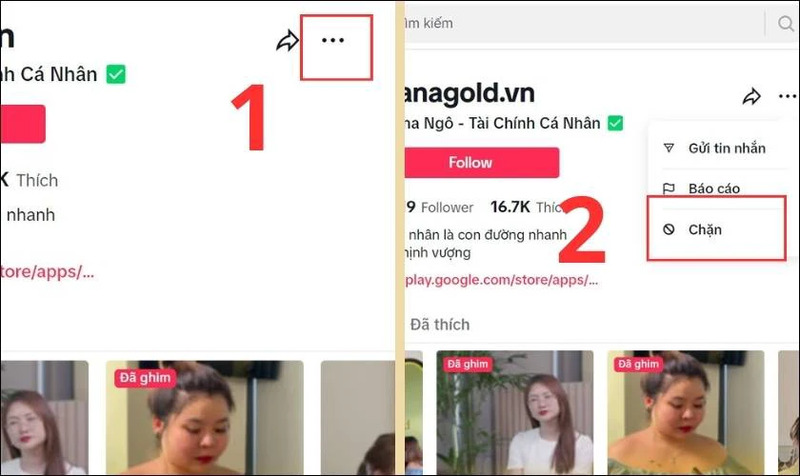
- Visit the official TikTok website in your browser, log in to your account, and navigate to the profile you want to block.
- Click the three-dot icon (⋯) in the top-right corner of their profile.
- Select “Block” from the dropdown menu.
- Confirm by clicking “Block” once more.
How to Unblock a TikTok Account
Sometimes you may want to reverse a block—whether to reconnect with a friend or simply to check their content again. Unblocking is just as simple.
Unblocking on Mobile Devices
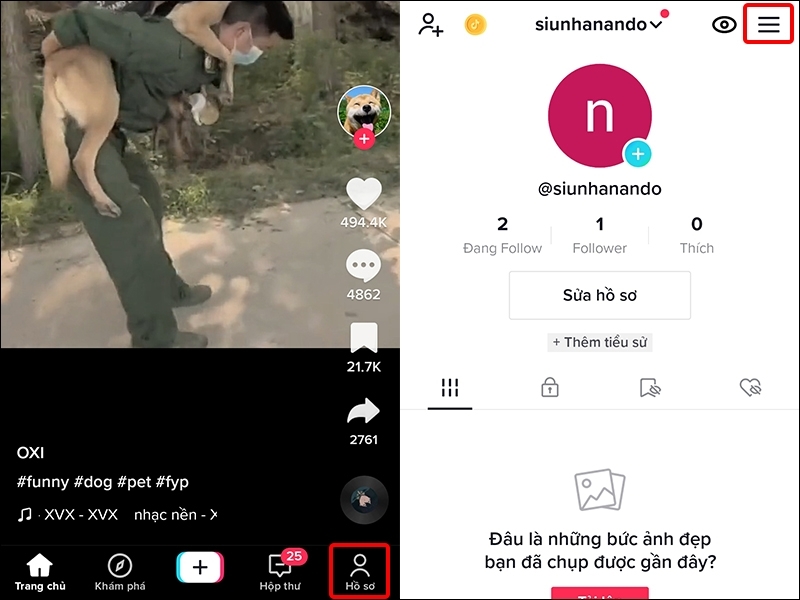
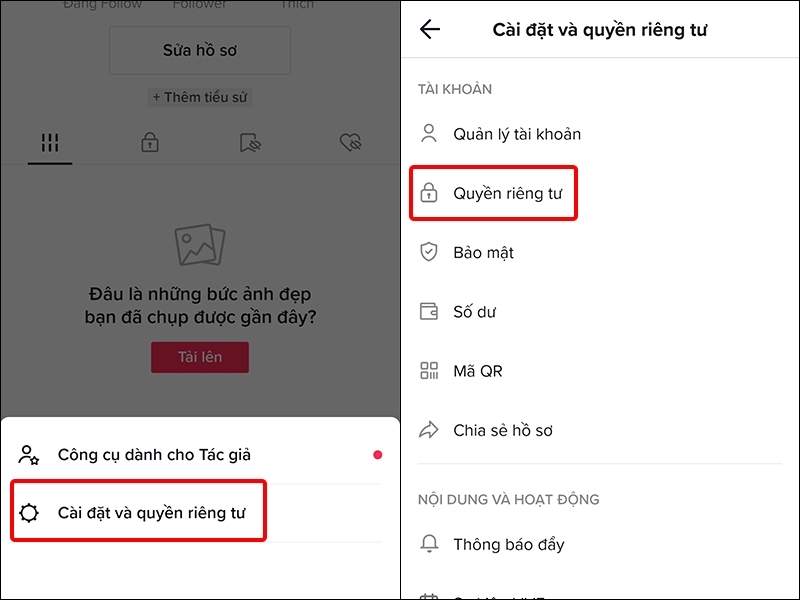
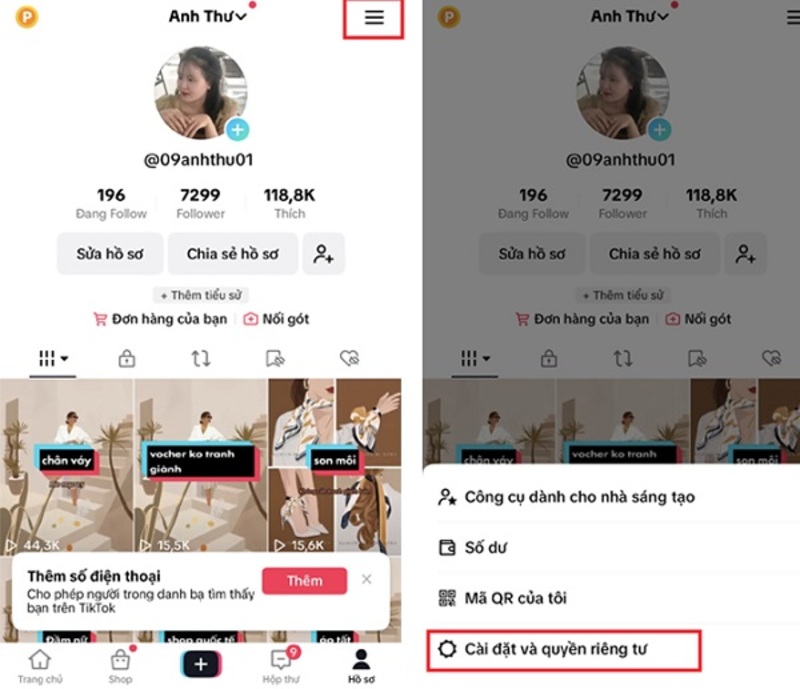
- Open TikTok and go to your Profile tab (bottom-right corner).
- Tap the three-line menu (☰) in the top-right corner.
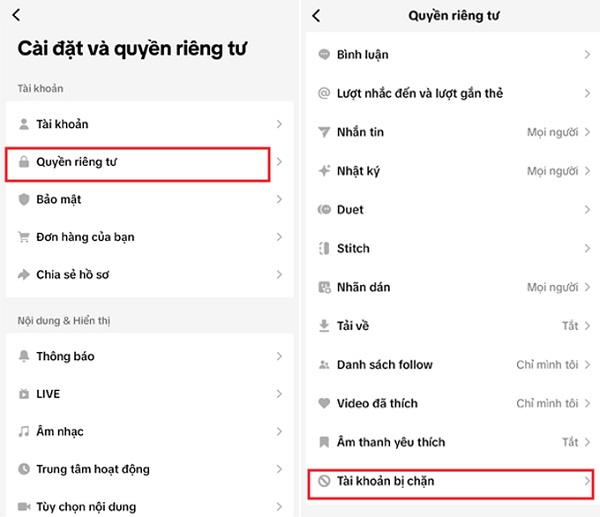
- Select “Settings and privacy” → “Privacy”.
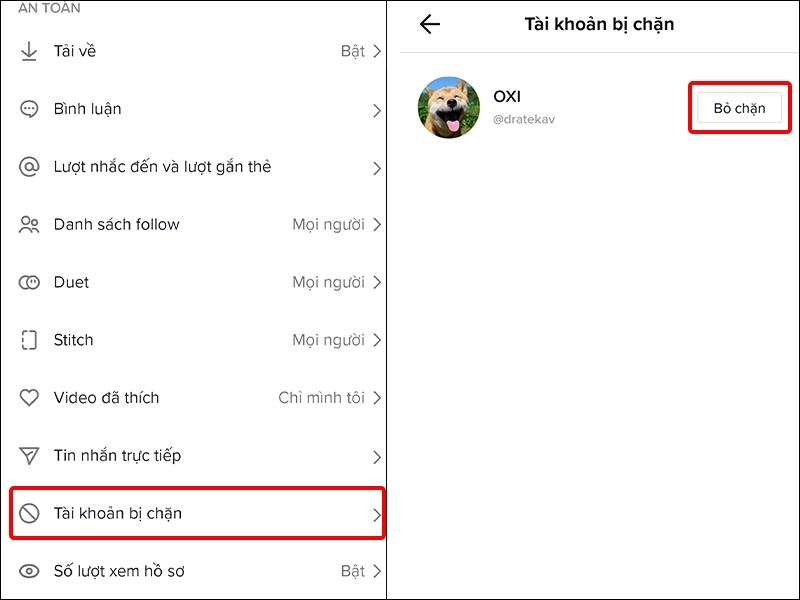
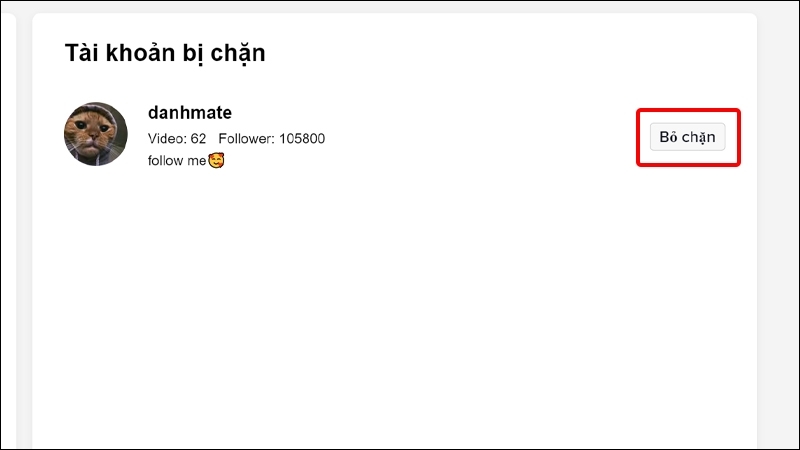
- Scroll to “Blocked accounts” and tap it to view your block list.
- Find the account and tap “Unblock”.
Unblocking on Desktop
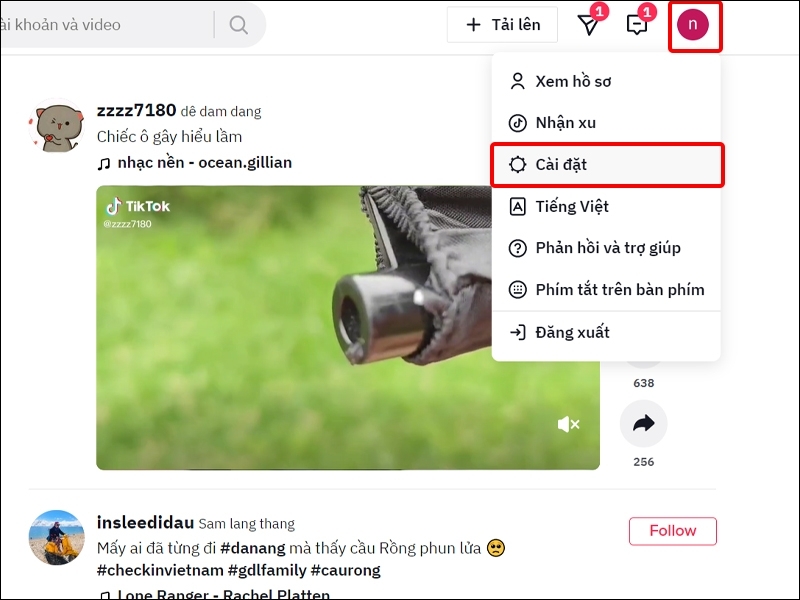
- Log in to TikTok on your computer and click your profile icon in the top-right corner.
- Choose “Settings”.
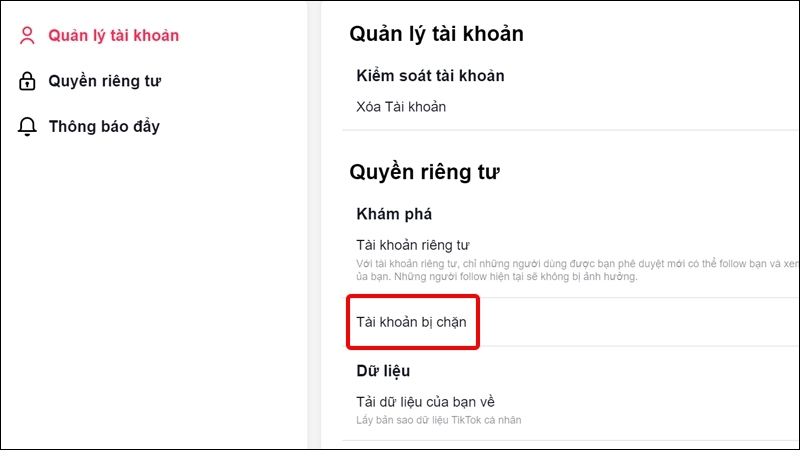
- In the “Account management” section, select “Blocked accounts”.
- Locate the user and click “Unblock”.
Important Facts About Blocking on TikTok
Benefits of Blocking TikTok Accounts
Blocking offers several key advantages that enhance your overall experience:
- Cleaner feed: The blocked account’s videos, duets, and stitches will no longer appear in your For You page or Following feed.
- Protection from harassment: Blocked users cannot view your profile, like or comment on your videos, or send you messages.
- Reduced negativity: Say goodbye to spam, toxic comments, or unwanted interactions, allowing you to focus on content you truly enjoy.
- Improved mental well-being: By eliminating sources of stress or discomfort, you create a healthier and more enjoyable space on the platform.
Does TikTok Notify the Blocked User?
No, TikTok does not send any notification when someone is blocked. The blocked person will not receive an alert. However, they may eventually realize it when they can no longer find your profile, view your content, or interact with you in any way.
How to Tell If Someone Has Blocked You on TikTok
TikTok does not provide a direct “Who blocked me” feature, but you can identify a block through these common signs:
- You cannot find their profile when searching their username.
- Any previous comments, likes, or messages from them disappear from your profile.
- Clicking on old links or mentions leads to a message saying the content is unavailable or the account doesn’t exist.
- You are unable to follow them or view their videos even if they are public.
How to View Your List of Blocked TikTok Accounts
Whether on mobile or desktop, checking your blocked list is quick and useful for reviewing or managing past blocks.
- Open the TikTok app, go to your Profile, and tap the three-line menu (☰).
- Select “Settings and privacy” → “Privacy”.
- Tap “Blocked accounts” to see the full list.
Mastering how to block TikTok accounts empowers you to curate a safer, more enjoyable experience on the platform. Whether you’re protecting your mental health, avoiding spam, or simply customizing your feed, these tools put you in full control. Use them wisely to make TikTok work for you—not against you.
Related Articles:
- How to Download TikTok Music as Ringtones
- Mastering TikTok Blocking
- Convert Music to MP3 Online
- Beginner’s Guide to Using Tinder
- How to Download Lightroom Presets