

In today’s digital landscape, maintaining online privacy and security has become paramount. A Virtual Private Network (VPN) serves as a powerful tool that enables users to safeguard their personal information, encrypt data transmissions, and navigate the internet with enhanced anonymity. By establishing a secure tunnel between your device and a remote server, a VPN effectively masks your real IP address, allowing seamless access to geographically restricted content while shielding you from potential cyber threats. This comprehensive guide delves deeply into the essence of VPN technology, its core features, operational mechanisms, and practical implementation on computers, providing you with expert-level insights to make informed decisions.
Understanding VPN: Definition, Key Features, and Operational Principles
A Virtual Private Network (VPN) is an advanced networking technology that creates a secure, encrypted connection over a less secure network, typically the public internet. Essentially, it functions as a private tunnel that routes your internet traffic through an intermediary server operated by the VPN provider. This process not only conceals your actual IP address but also encrypts all data packets, rendering them unreadable to unauthorized parties such as internet service providers (ISPs), hackers, or government surveillance entities.
The appeal of VPN services lies in their multifaceted benefits, which extend far beyond basic privacy protection. Here are the primary advantages that make VPNs indispensable for modern users:
- Data Encryption and Security: At its core, a VPN employs robust encryption protocols (such as AES-256) to scramble your data during transmission. This ensures that even if intercepted on unsecured networks, sensitive information like passwords, financial details, or personal communications remains impenetrable to malicious actors.
- Online Anonymity: By replacing your device’s IP address with one from the VPN server, it becomes significantly harder for websites, advertisers, or trackers to profile your online behavior. This anonymity helps mitigate targeted advertising, data harvesting, and potential doxxing risks.
- Bypassing Geo-Restrictions: Many streaming platforms, news sites, and online services limit content based on location. Connecting to a VPN server in a different country alters your virtual location, granting access to libraries of movies, shows, sports events, or region-exclusive applications that would otherwise be unavailable.
- Safe Public Wi-Fi Usage: Public hotspots in cafes, airports, or hotels are notorious for vulnerabilities like man-in-the-middle attacks. A VPN encrypts your connection, preventing eavesdroppers on the same network from stealing your data or injecting malware.
- Remote Corporate Access: For professionals, VPNs enable secure remote connections to company intranets, allowing access to internal files, databases, and collaboration tools without exposing corporate networks to external threats.
- Circumventing Censorship: In regions with strict internet controls, VPNs provide a pathway to unrestricted information flow, empowering users to access blocked social media, news outlets, or communication platforms.
- Improved Gaming and Torrenting: Beyond privacy, VPNs can reduce DDoS attacks on gamers, lower ping times by optimizing routes, and protect users engaging in peer-to-peer file sharing from ISP throttling or legal scrutiny.
- Prevention of Bandwidth Throttling: Some ISPs deliberately slow down specific activities like streaming or downloading. A VPN masks your traffic type, preventing such discriminatory practices and ensuring consistent speeds.
To grasp how a VPN achieves these outcomes, it’s essential to understand its underlying mechanics. The process unfolds in several sophisticated stages:
- Encryption Initiation: Upon connecting to a VPN server, your device negotiates encryption keys using protocols like OpenVPN, WireGuard, IKEv2, or L2TP/IPsec. All outgoing data is immediately encrypted before leaving your computer.
- Secure Tunnel Establishment: A virtual tunnel is formed between your device and the remote server. This tunnel encapsulates your data packets, adding layers of security headers that direct traffic exclusively through the VPN provider’s infrastructure.
- Traffic Routing: Instead of direct communication with destination servers, your requests are forwarded via the VPN server. This server strips the encryption, retrieves the requested content, re-encrypts it, and sends it back through the tunnel.
- Decryption and Delivery: Your device receives the encrypted response, decrypts it locally, and displays the content as if connected normally—yet with complete privacy preserved throughout.
- Kill Switch and Leak Protection: Premium VPNs incorporate features like automatic kill switches (which halt internet access if the VPN drops) and DNS/IPv6 leak prevention to ensure no data escapes the secure tunnel unintentionally.
These principles highlight why VPNs are not merely optional tools but critical defenses in an era of widespread data breaches, surveillance capitalism, and cyber espionage.
Step-by-Step Guide to Installing and Using VPN on Your Computer
Deploying a VPN on your desktop or laptop is straightforward, with numerous reputable providers offering user-friendly applications. For illustration, we’ll explore a popular free option like Cloudflare’s WARP, which provides basic VPN-like functionality alongside performance enhancements.
Step 1: Downloading the VPN Client
Navigate to the official website (1.1.1.1) and select the appropriate installer for your operating system—whether Windows, macOS, or Linux. Choose the version that matches your device’s architecture for optimal compatibility.

Step 2: Running the Installer
Once downloaded, execute the file and follow the on-screen prompts. Grant necessary permissions for system-level integration, as VPN clients often require low-level network access.
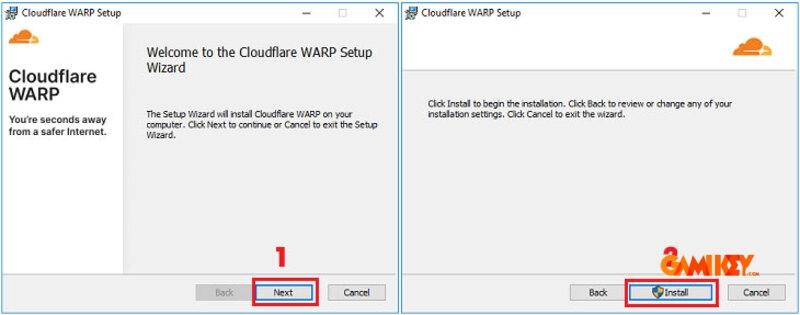
Step 3: Completing Setup
Proceed through the wizard by clicking “Next” and accepting the terms. This installs the required drivers and system tray integration.
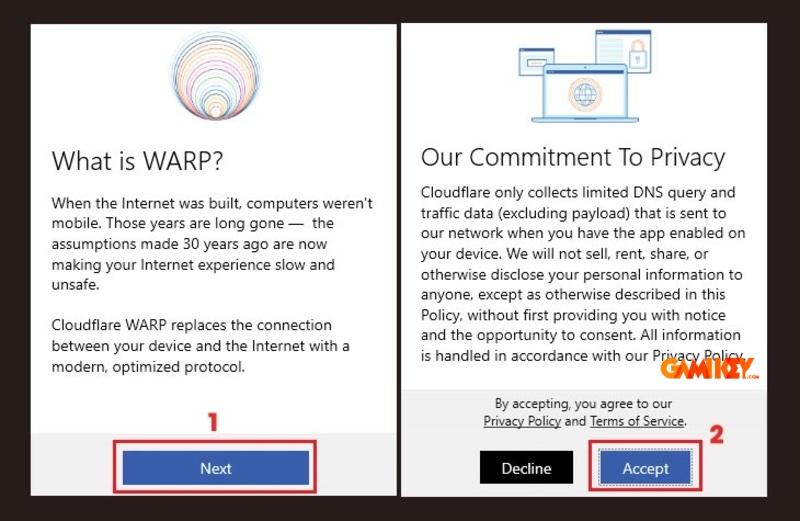
Step 4: Activating the Service
Launch the application and toggle the WARP switch to enable secure, optimized browsing. The icon will appear in your taskbar for quick access and status monitoring.
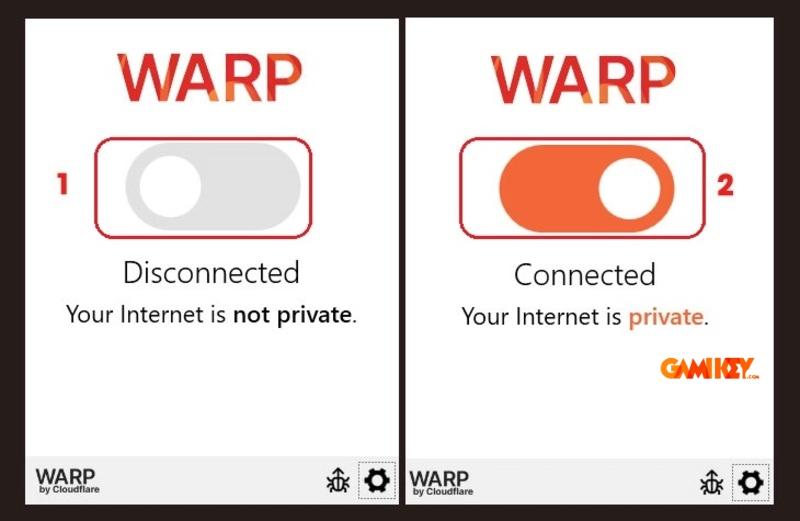
Enabling VPN Sharing on Windows Laptops via Mobile Hotspot
For users seeking to extend VPN protection to multiple devices without individual installations, Windows offers built-in sharing capabilities using a premium service like Surfshark.
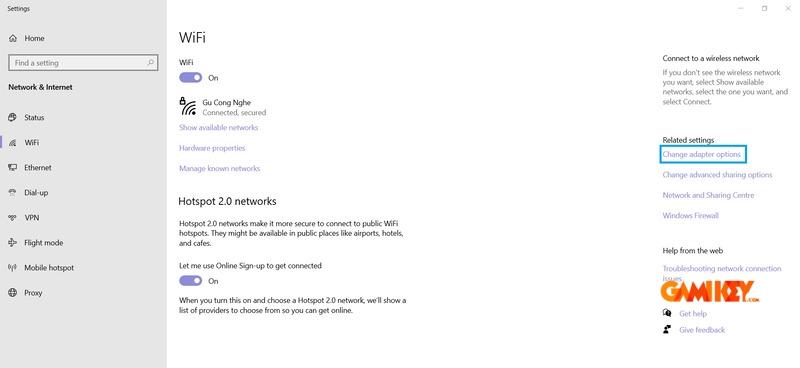
Step 1: Accessing Network Adapters
Click the network icon in the system tray, select “Open Network & Internet settings,” navigate to the appropriate connection type (Wi-Fi or Ethernet), and choose “Change adapter options” to view all network interfaces.
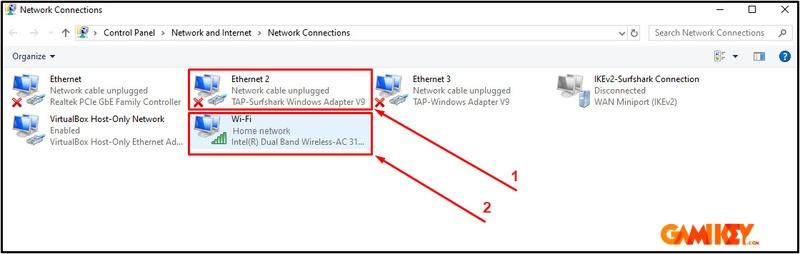
You’ll observe adapters such as the VPN TAP interface alongside standard connections.
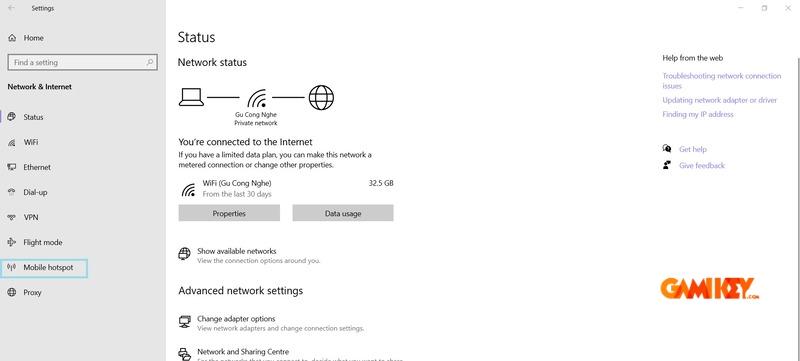
Step 2: Activating Mobile Hotspot
Return to Network settings, enable the Mobile hotspot feature, and customize the network name and password for security.
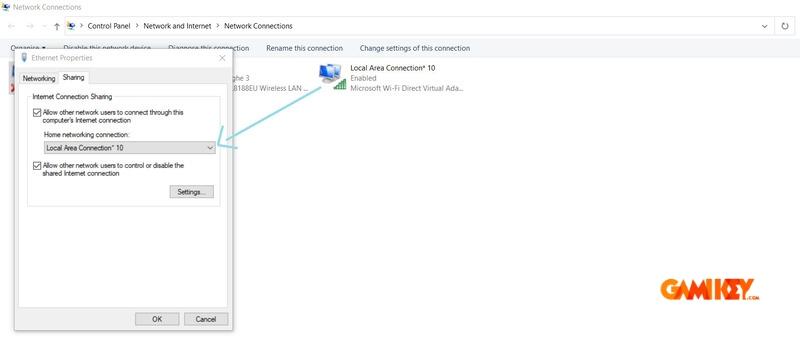
Step 3: Configuring Adapter Sharing
In Network Connections, right-click the VPN adapter, access Properties > Sharing tab, and enable internet connection sharing with the newly created hotspot.
Step 4: Establishing the VPN Connection
Launch your premium VPN app, configure the protocol (e.g., OpenVPN UDP for speed), and connect to a preferred server location.
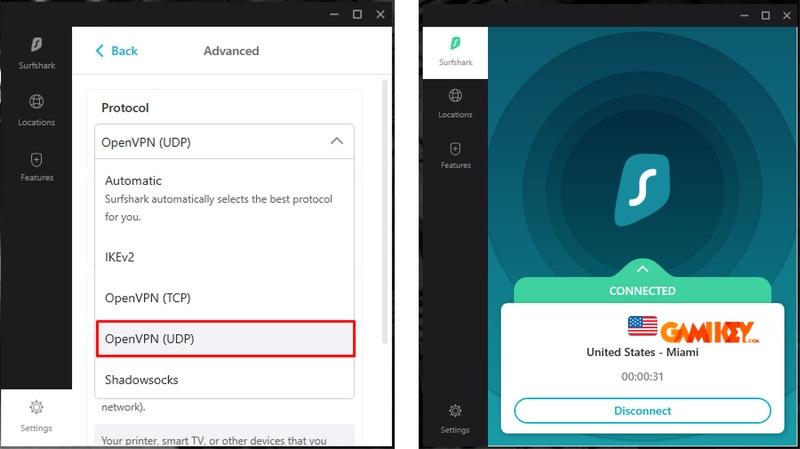
Step 5: Verifying Functionality
Connect another device to the hotspot and visit sites like ipleak.net to confirm the shared IP matches the VPN server’s location, ensuring full protection across devices.
Manually Configuring a VPN Connection on Windows
For advanced users or those with provider-specific credentials, Windows allows native VPN setup without third-party software.
- Step 1: Right-click the network icon, open settings, select VPN from the sidebar, and click “Add a VPN connection.”
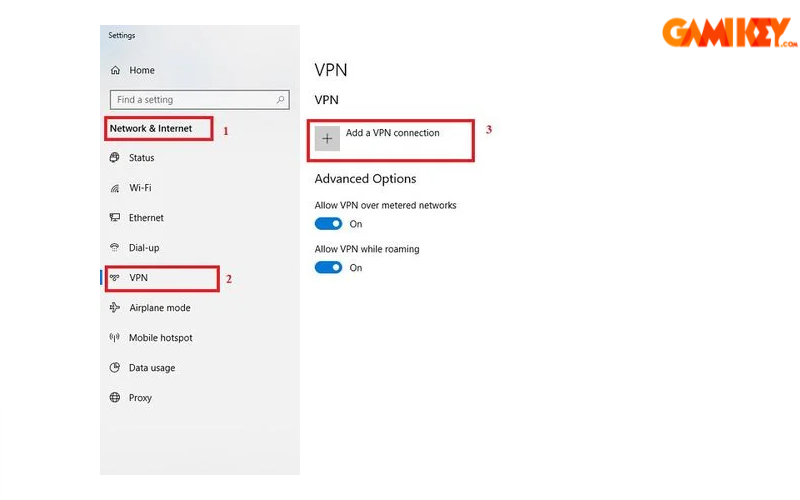
- Step 2: Input provider details: VPN type (e.g., IKEv2, PPTP), server address, username, and password.
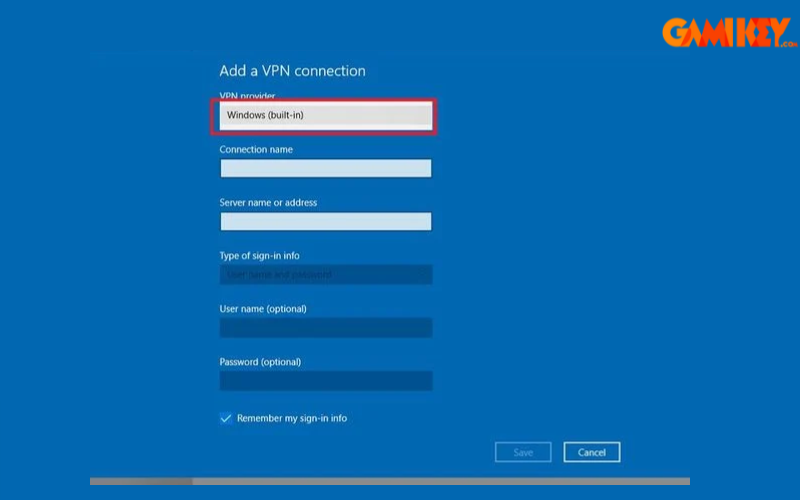
- Step 3: Customize connection type and save the profile.
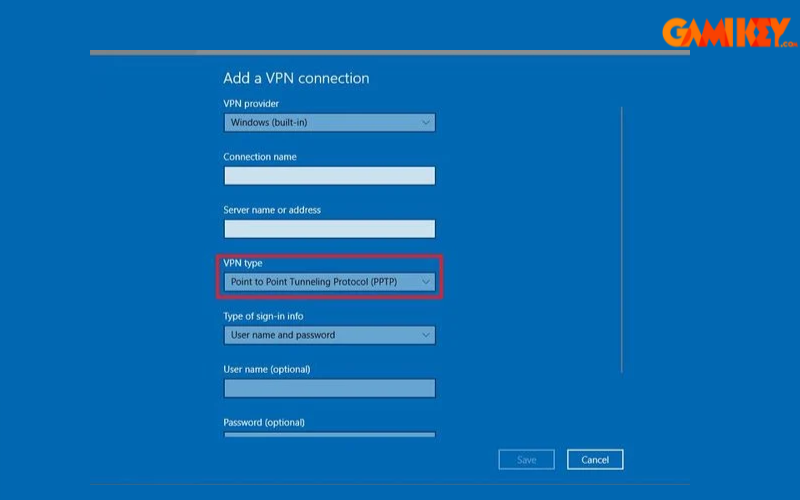
- Step 4-5: Return to VPN settings, select the new profile, and initiate the connection. Authenticate if required, and monitor for “Connected” status.
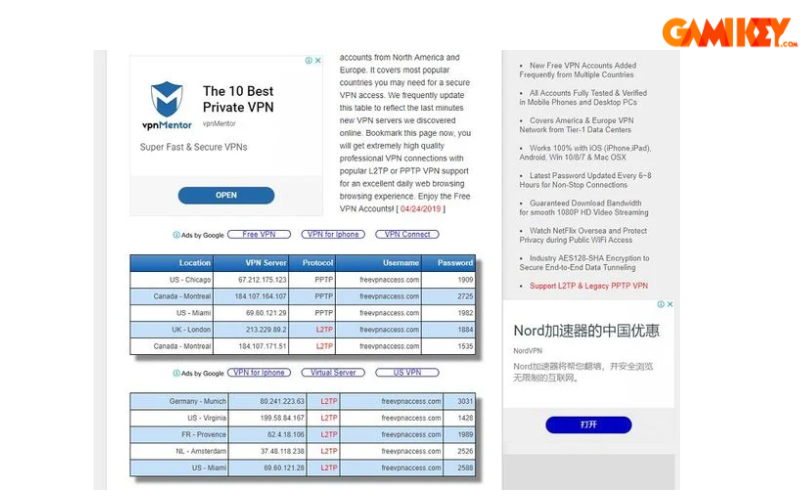
Removing an Existing VPN Profile from Your Computer
Step 1: Access Settings > Network & Internet > VPN.
Step 2: If active, disconnect the VPN first.
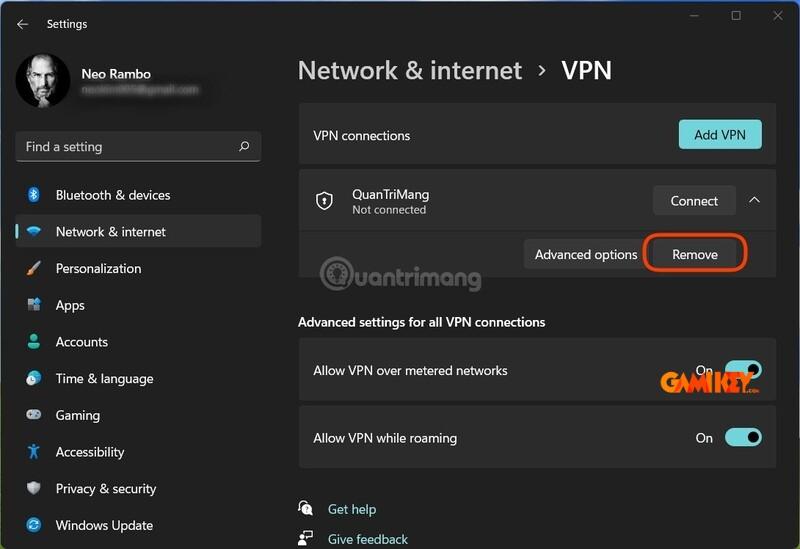
Step 3: Expand options and select “Remove” to permanently delete the configuration.
In conclusion, mastering Virtual Private Network (VPN) technology empowers you to reclaim control over your digital footprint. Whether for enhanced security, unrestricted access, or professional needs, implementing a reliable VPN is a wise investment in your online safety. Explore top-rated options, prioritize providers with no-logs policies, strong encryption, and extensive server networks to maximize benefits. Stay vigilant, update your software regularly, and enjoy a freer, safer internet experience.